

Run the Service Client with a local user
The Service Client runs on Windows as the service cloudprint-Client, under a Windows account. That account decides whether the service can start and which printer settings it prints with. Some printers don’t work with the Windows system account.
For them, assign a local account of this computer to the service. If you entered one during the installation, you can skip the steps on this page.
Which account the service needs
Section titled “Which account the service needs”The account needs read and write access to the folder C:\ProgramData\comrce_cloudprint. The service writes its configuration there every time it starts, and doesn’t start if it can’t. Full administrator rights aren’t required for that. Running the setup does need administrator rights: confirm the Windows prompt with an administrator account.
| Account | What you need to know |
|---|---|
| A local administrator account | Works. It already has access to the folder. |
| An ordinary local account | Works once it has read and write access to the folder. Service Client troubleshooting on Windows shows how to grant it. |
| The Windows system account | What the setup calls “Systembenutzer”. The setup itself warns that it can cause problems with certain printers. |
| An account you sign in to with a PIN | Enter the account’s password, never the PIN. |
In the setup, the option “Lokaler Benutzer (empfohlen)” asks for a user name and password. The name is filled in with the Windows user who is signed in. It must be an account of this computer.
The account also decides how pages print. The service uses the printer driver’s defaults for exactly this account, for example for duplex and paper type. Set them while signed in with this account, as Printers shows.
Assign a local user account
Section titled “Assign a local user account”-
Open the Start menu, type “Dienste” (Services) and press Enter. The services console opens.
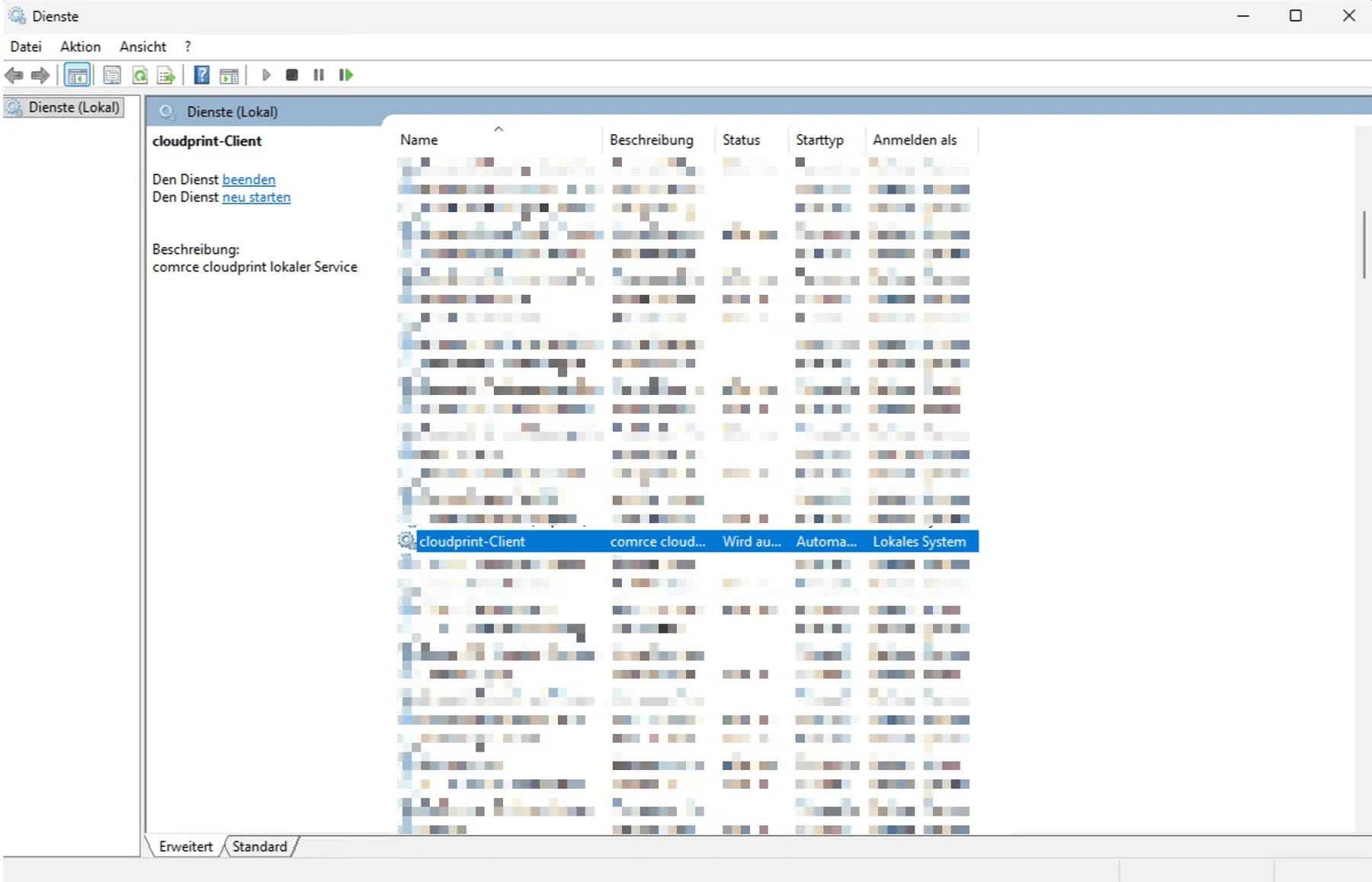
Find "cloudprint-Client" in the Windows services console.Screenshot from Windows, checked against the source on October 29, 2026 What this screenshot shows
- Also visible
- Row cloudprint-Client, selected; Description comrce cloudprint lokaler Service
- Purpose
- find the Service Client among the Windows services
-
Double-click “cloudprint-Client”.
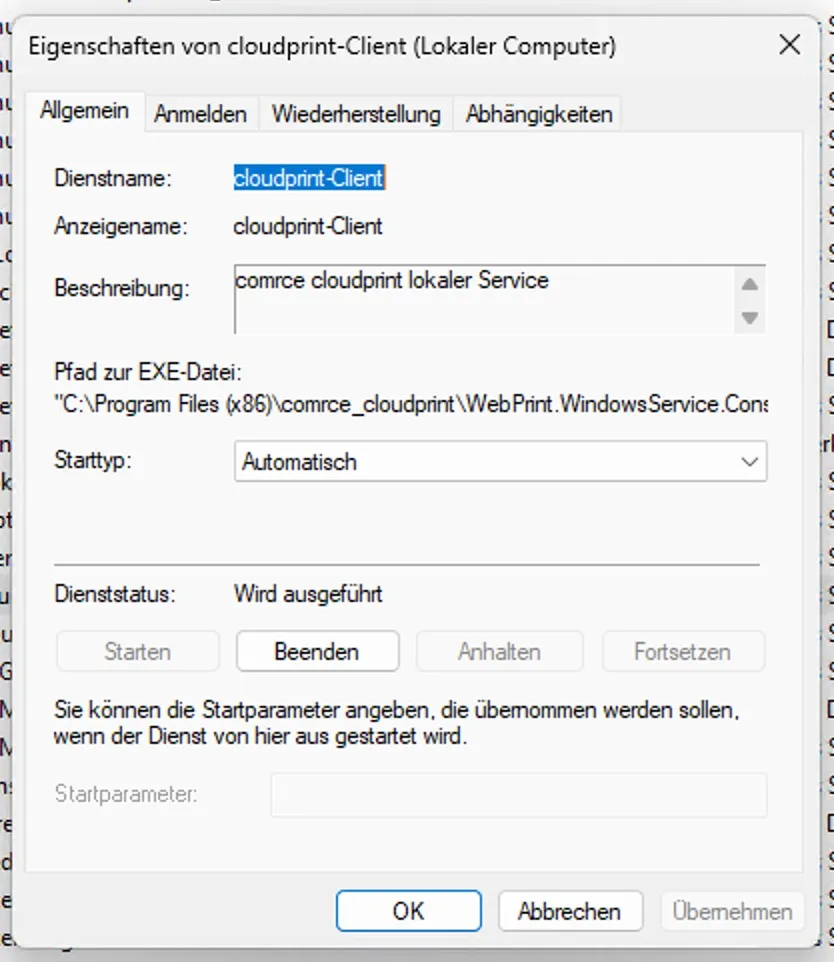
The properties of the service open on "Allgemein". The account is set on "Anmelden".Screenshot from Windows, checked against the source on October 29, 2026 What this screenshot shows
- Also visible
- Tabs Allgemein, Anmelden, Wiederherstellung, Abhängigkeiten; Startup type Automatisch, status running
- Purpose
- open the properties of the Service Client
-
Switch to the Anmelden (Log On) tab. Select “Dieses Konto” (This account) and enter the credentials of a local account. “Durchsuchen” (Browse) searches all accounts on the computer.
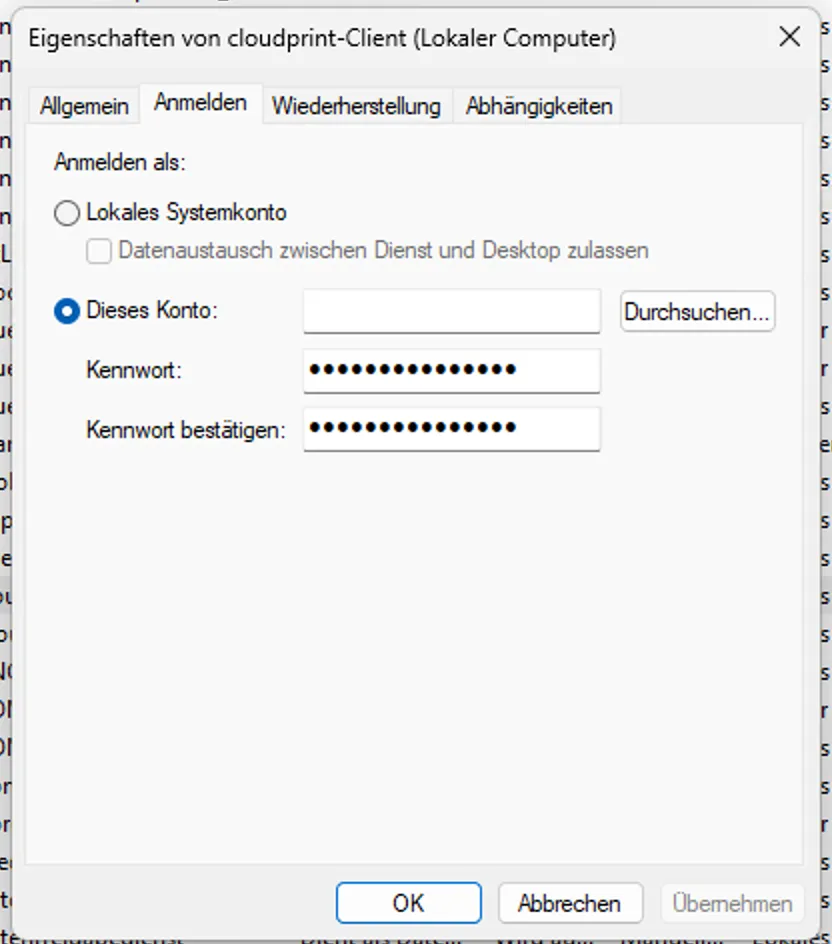
Select "Dieses Konto" and enter the local account and its password.Screenshot from Windows, checked against the source on October 29, 2026 What this screenshot shows
- Also visible
- Dieses Konto selected with Durchsuchen; Password fields filled in
- Purpose
- run the Service Client with a local account
-
If another dialog opens, confirm it.
-
Back in the services list, right-click the “cloudprint-Client” row. Select “Neu starten” (Restart).
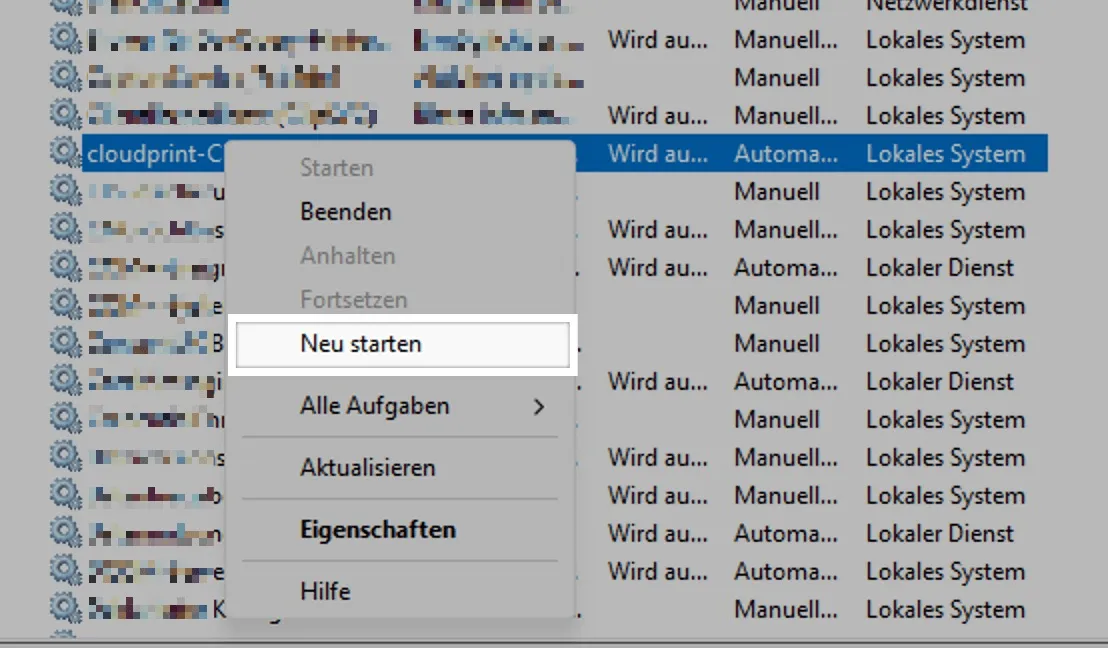
"Neu starten" in the context menu restarts the Service Client.Screenshot from Windows, checked against the source on October 29, 2026 What this screenshot shows
- Also visible
- Context menu with Neu starten highlighted
- Purpose
- restart the Service Client
What happens next
Section titled “What happens next”If your credentials are correct, the service restarts. It then prints with this account’s printer settings in Windows.
If something goes wrong
Section titled “If something goes wrong”| Symptom | What to check |
|---|---|
| The setup shows Der Benutzername oder das Passwort sind nicht korrekt. | Signing in with this account failed. Enter the name of an account on this computer and its password, not the PIN. |
| The service doesn’t start after you assign the account | The account can’t write to C:\ProgramData\comrce_cloudprint. Give it read and write access to the folder, then restart the service. |
| The job reaches the printer’s queue in Windows, but shows an error there or prints wrongly | The service prints with the driver settings of its own account. Sign in to Windows with that account, check the printer’s printing preferences and print a test page from there. |