

Set up comrce cloudprint and your first printer
Print from the cloud on your own printers with comrce cloudprint, for example shipping labels from Billbee. Nobody has to activate it for you. You register in comrce Hub and select Install on comrce cloudprint in the Marketplace. In the app, you add a Service Client and install it on a Windows computer with your printers.
Before you start
Section titled “Before you start”| You need | Where it lives |
|---|---|
| A comrce Hub account | Anyone can register, without a beta access or a release by support. On the sign-in page at app.comrce.io, select Sign Up under Don't have an account?. Set up your company in comrce Hub walks you through it. |
| The Owner role for the first sign-in to comrce cloudprint | Whoever registers the company has it. Colleagues sign in after the owner. |
| Managing API connections to install. By default only the owner has it. | Your member tab, section Company profile |
| A computer with Windows 10 or Windows 11 and access to the printers you want to use | Your office or warehouse. Only Windows gets a setup file to download. |
| The printers, installed locally on that computer | Windows |
Every company in comrce Hub can install comrce cloudprint. It’s free of charge for Billbee customers.
-
Find comrce cloudprint in the Marketplace. Select Marketplace at the bottom of the left sidebar. In the section Operations, Automations and Connectors, select Find provider on the Cloudprint tile. The page lists every provider for cloud printing.
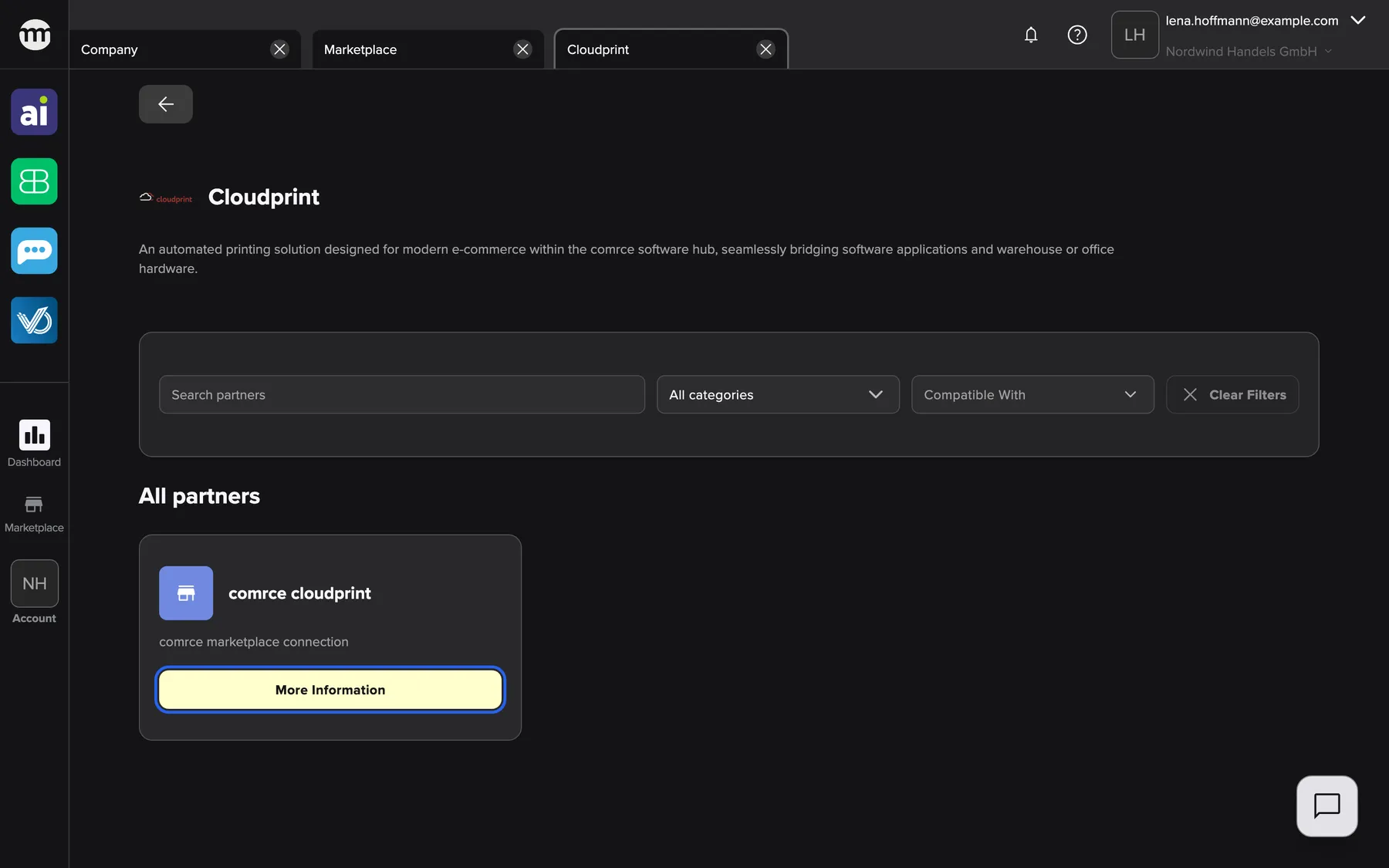
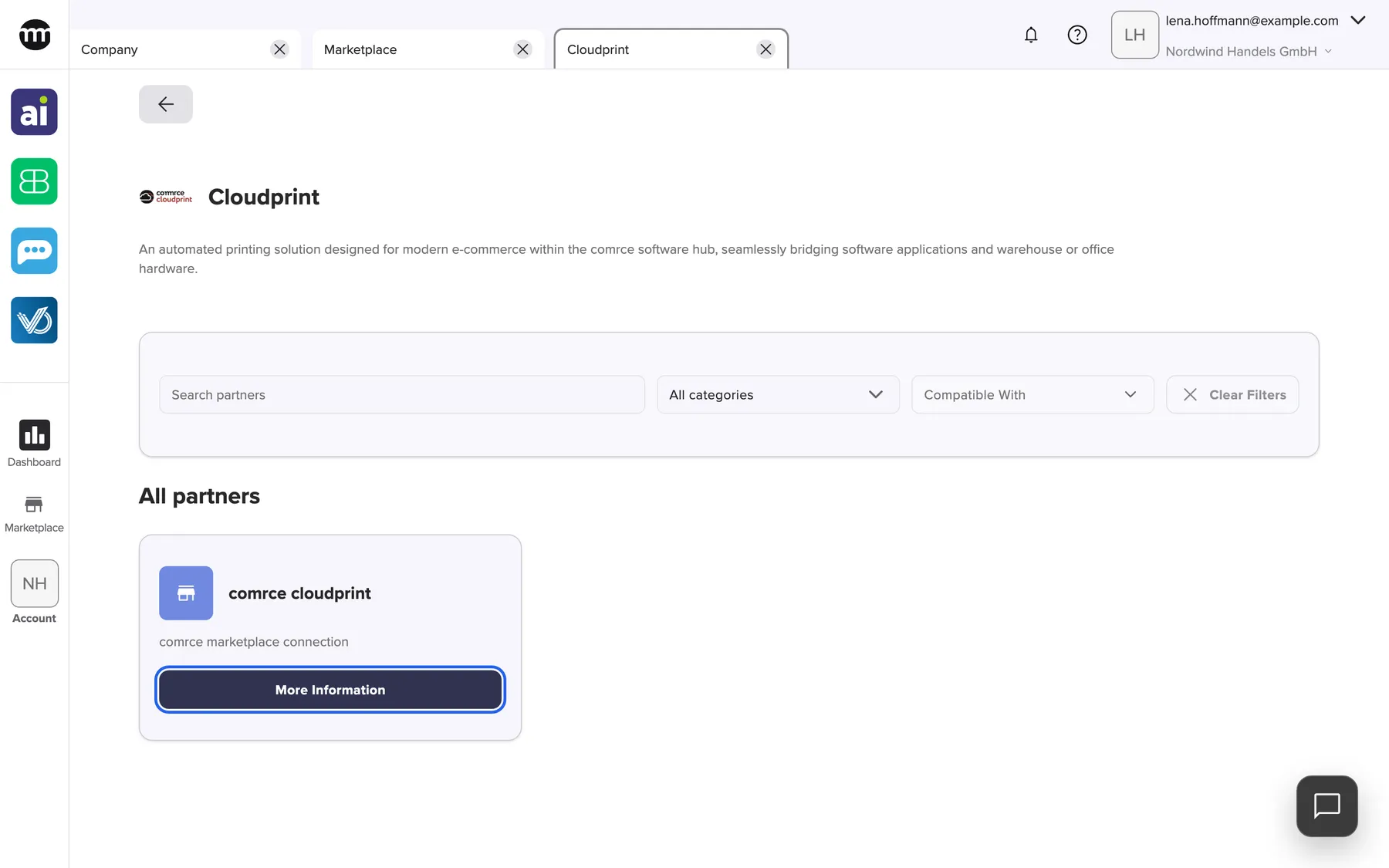
The Cloudprint service lists comrce cloudprint as its partner. More information opens its page. What this screenshot shows
- Screen
- Cloudprint
- Highlighted
- “More information”: opens the page of the partner comrce cloudprint
- Also visible
- Service title Cloudprint with its catalog description; 1 partner tile, comrce cloudprint
- Purpose
- find comrce cloudprint in the Marketplace
-
Install comrce cloudprint. Select More information on the comrce cloudprint tile, then Install. This lets your company sign in to comrce cloudprint. Your comrce cloudprint account doesn’t exist yet: the owner’s first sign-in in the next step creates it. Install a partner explains what else changes.
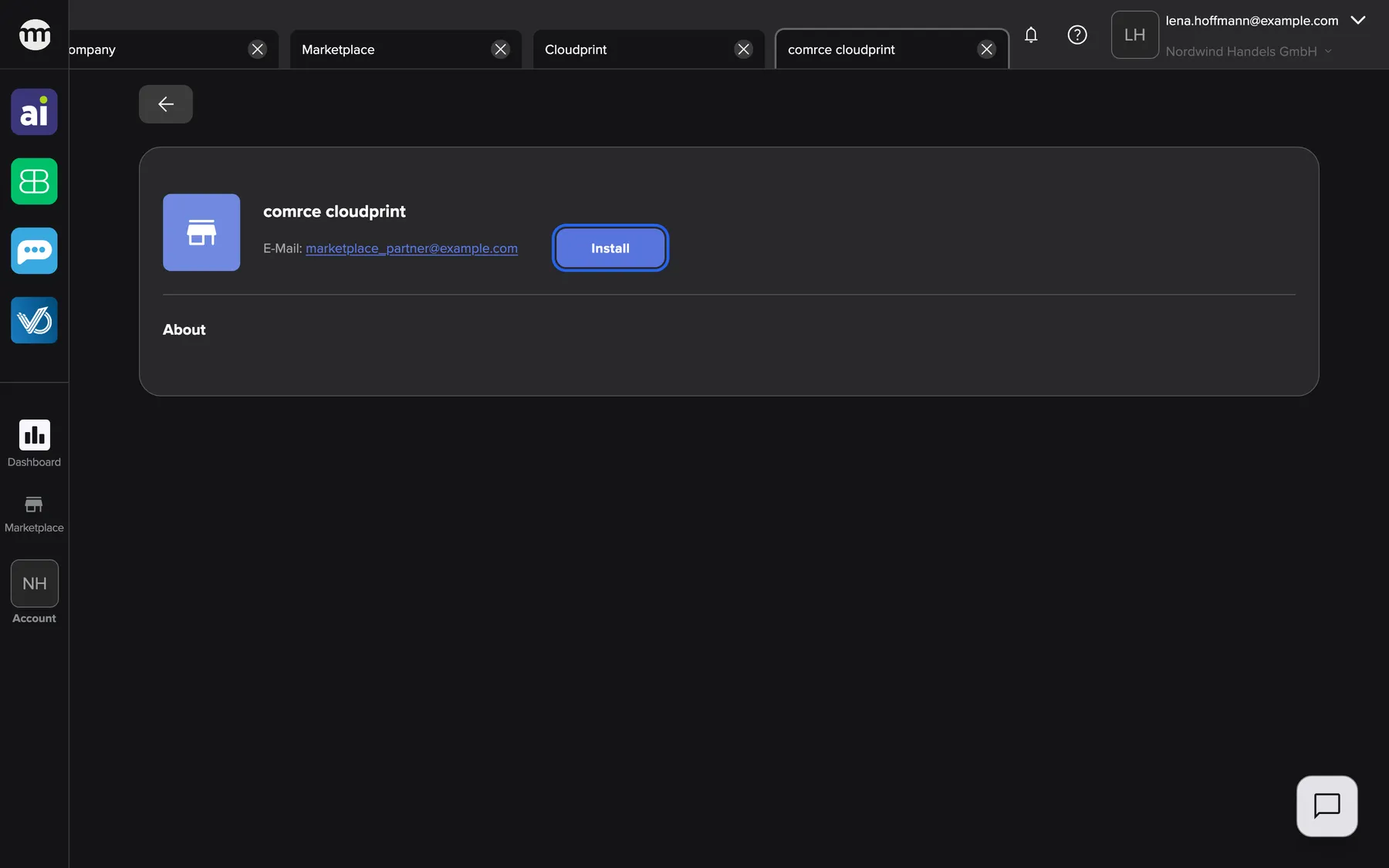
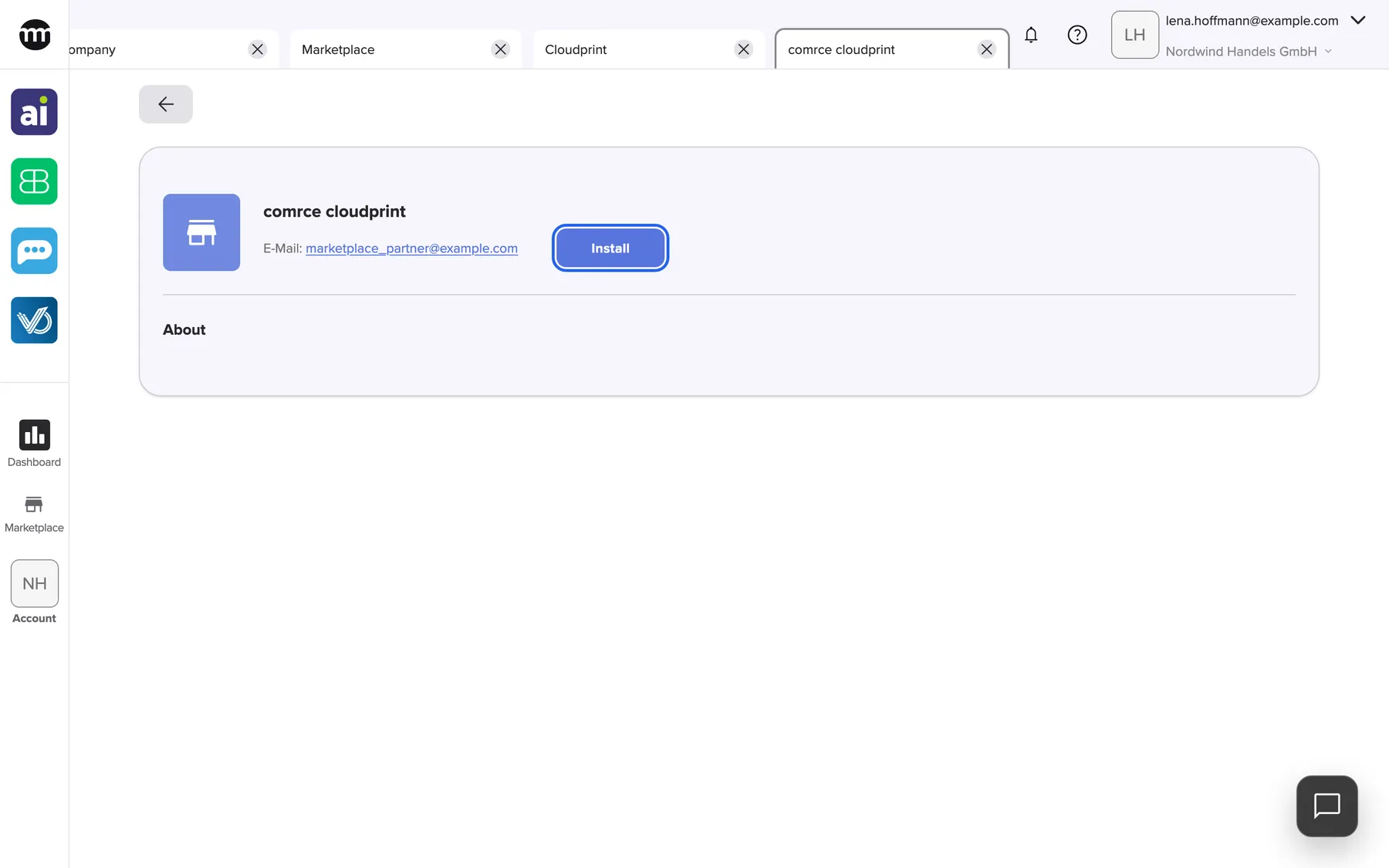
Install on the comrce cloudprint page installs it for your company. What this screenshot shows
- Screen
- comrce cloudprint
- Highlighted
- “Install”: installs comrce cloudprint for the whole company, without a confirmation
- Also visible
- Placeholder icon, name and email address; About
- Purpose
- install comrce cloudprint
-
Open the app as the owner and approve the sign-in. As the Owner, open cloudprint.app.comrce.io. You sign in through comrce Hub, which shows Single Sign-On Request. Select Approve. If you belong to several companies, choose the one you installed it for at Select an organization.
The app asks for your organisation to find its account, and for your role there. The Owner becomes its administrator, everyone else a member. Connect a tool to your account explains each kind of data in the request.
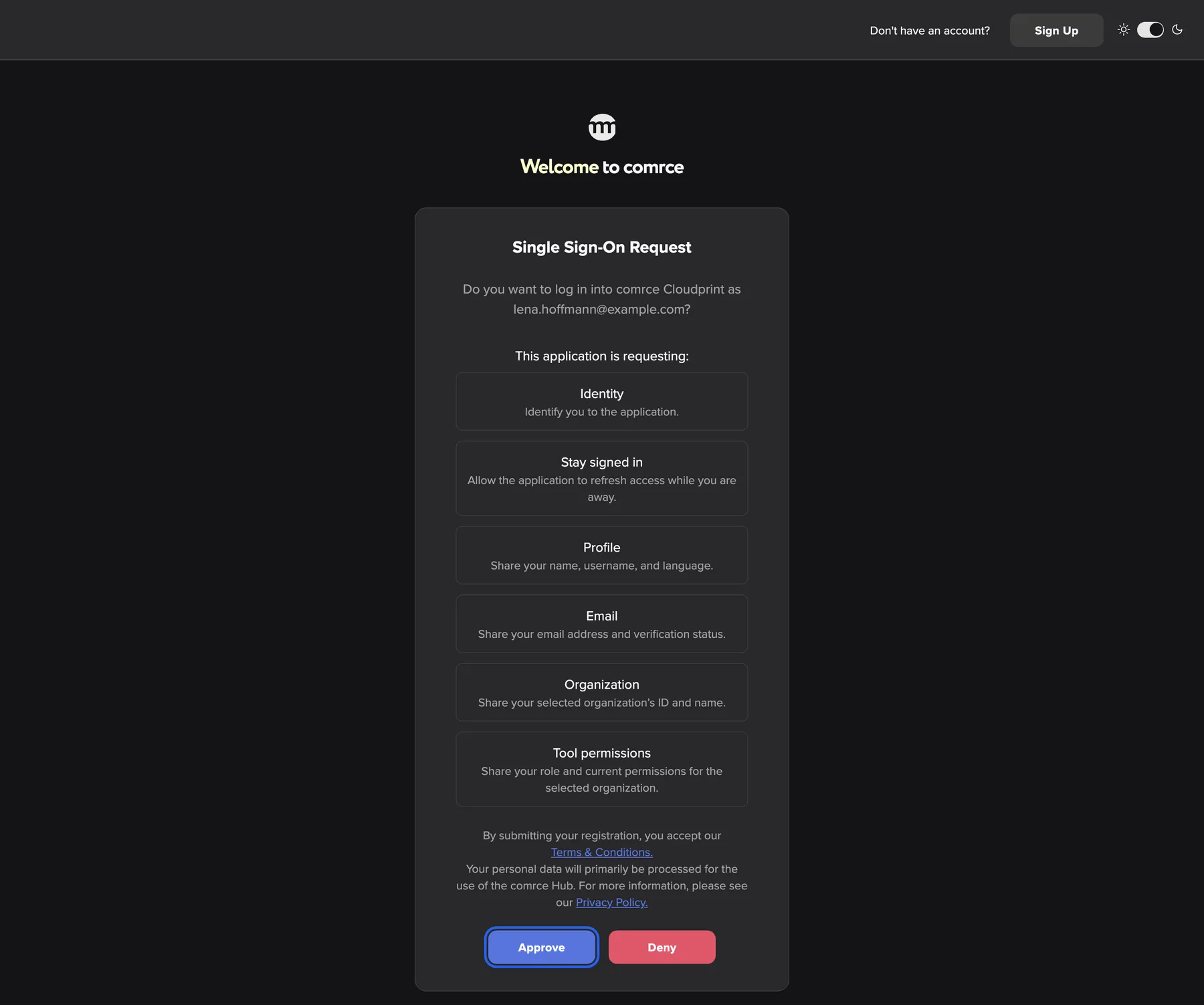
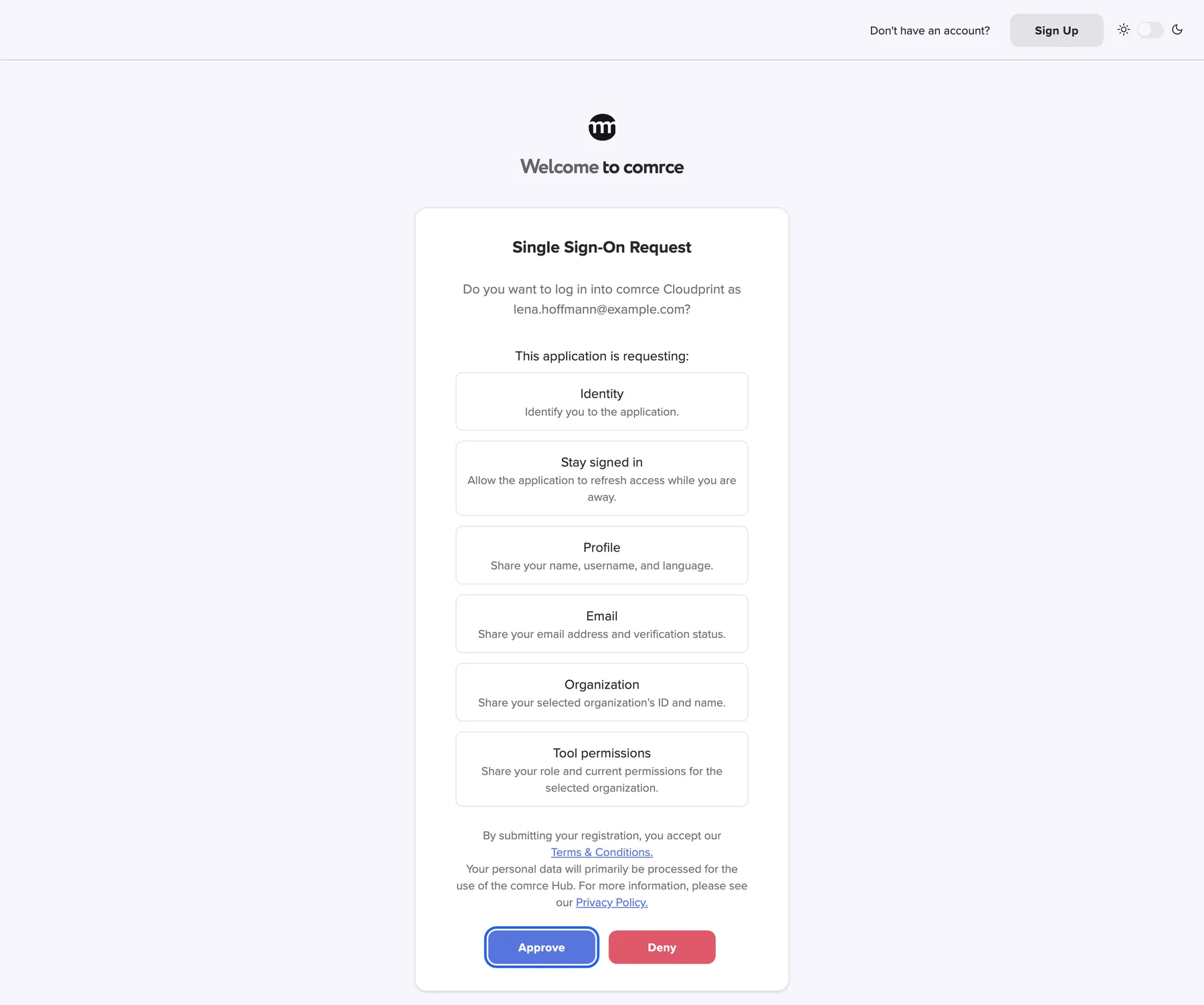
comrce Hub asks whether comrce cloudprint may sign you in. Approve lets it in. What this screenshot shows
- Screen
- Single Sign-On Request
- Highlighted
- “Approve”: approves the sign-in and opens comrce cloudprint
- Also visible
- The question naming comrce Cloudprint and your email address; Six requested data categories with explanations; Deny button
- Purpose
- approve the comrce cloudprint sign-in with comrce Hub
This first sign-in creates your company’s comrce cloudprint account, and the app opens on its dashboard. Colleagues can sign in from now on. No comrce cloudprint account was created explains what they see before.
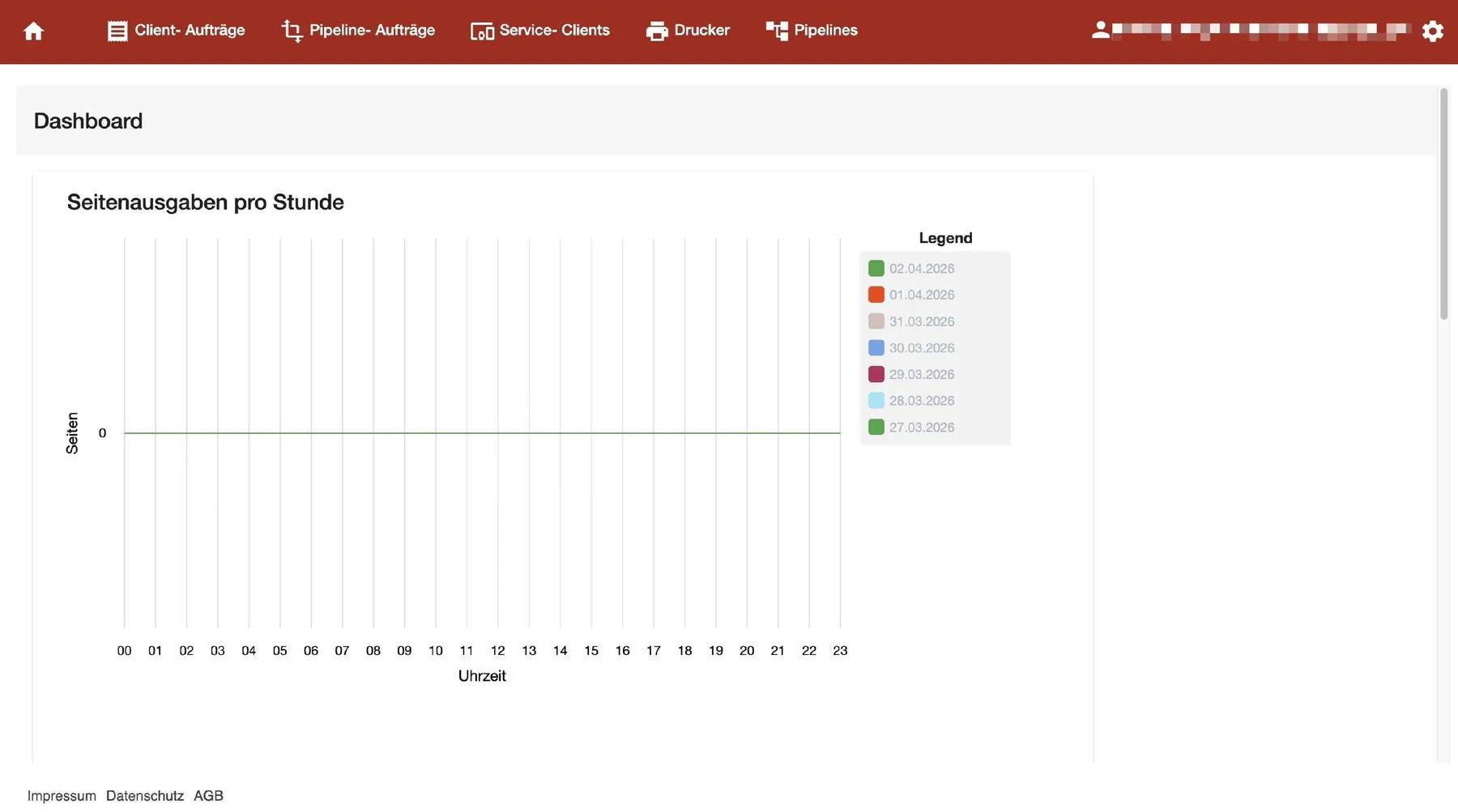
After you sign in, the comrce cloudprint app opens on its dashboard. The tabs at the top lead to Service Clients, printers and pipelines.Screenshot from comrce cloudprint, checked against the source on October 29, 2026 What this screenshot shows
- Also visible
- Tabs: Client- Aufträge, Pipeline- Aufträge, Service- Clients, Drucker, Pipelines; Chart of pages output per hour for the last seven days
- Purpose
- the comrce cloudprint app right after the first sign-in
-
Install your printers on the computer first. Install every printer locally on the Windows computer that will run the Service Client. The installation in step 7 then registers all of them automatically.
-
Add a Service Client. In the comrce cloudprint app, open Service- Clients and select the plus (Neuen Dienst erstellen).
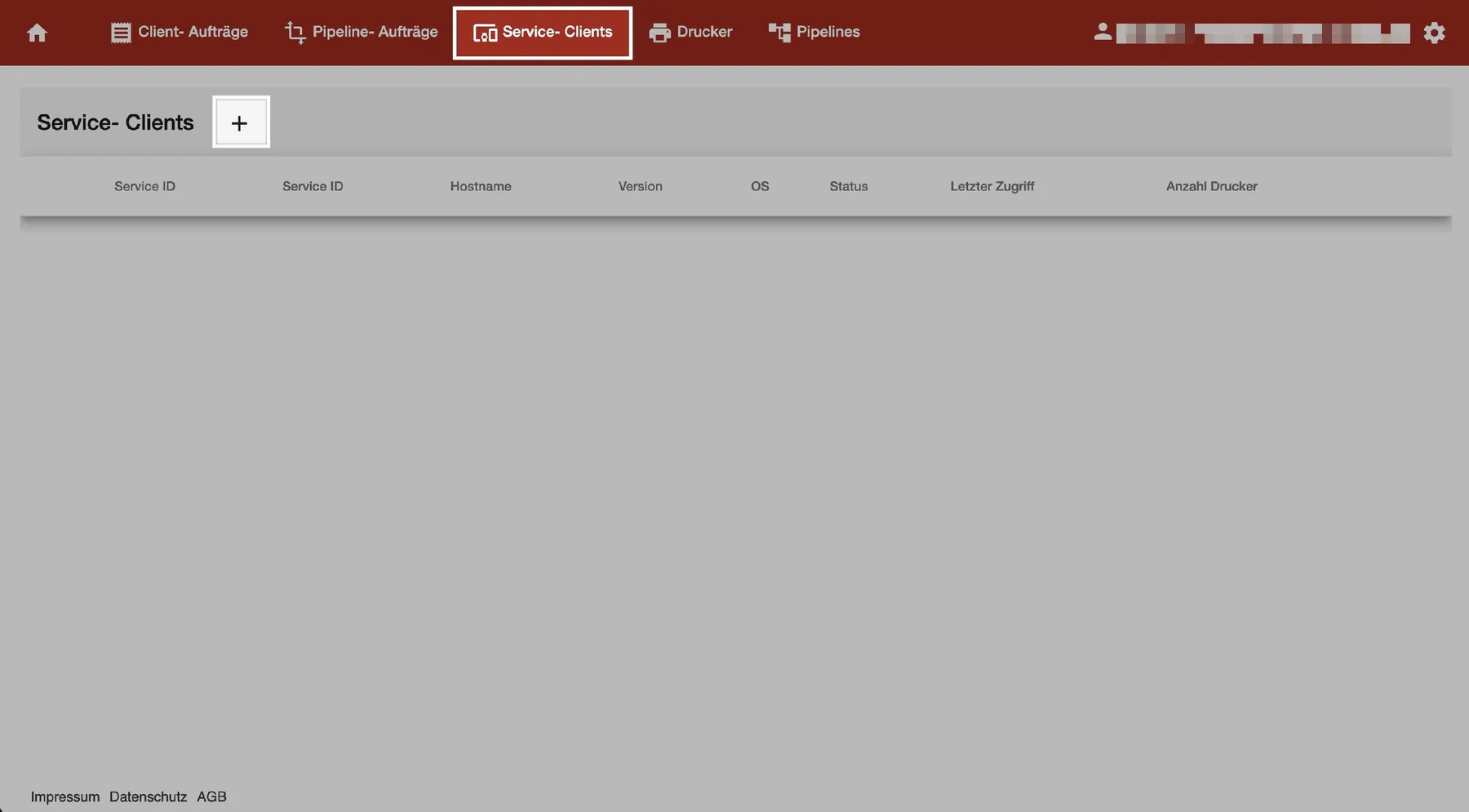
The "+" next to the heading adds a Service Client.Screenshot from comrce cloudprint, checked against the source on October 29, 2026 What this screenshot shows
- Also visible
- Empty list of Service Clients with its column headings; The + button next to the heading
- Purpose
- start adding a Service Client
Enter a name you’ll recognise the computer by later. Leave Typ on Windows, then select Ok. Only Windows gets a setup file. The MacOS option asks for a key from a DRUCKERWOLKE Mac client and offers no download.
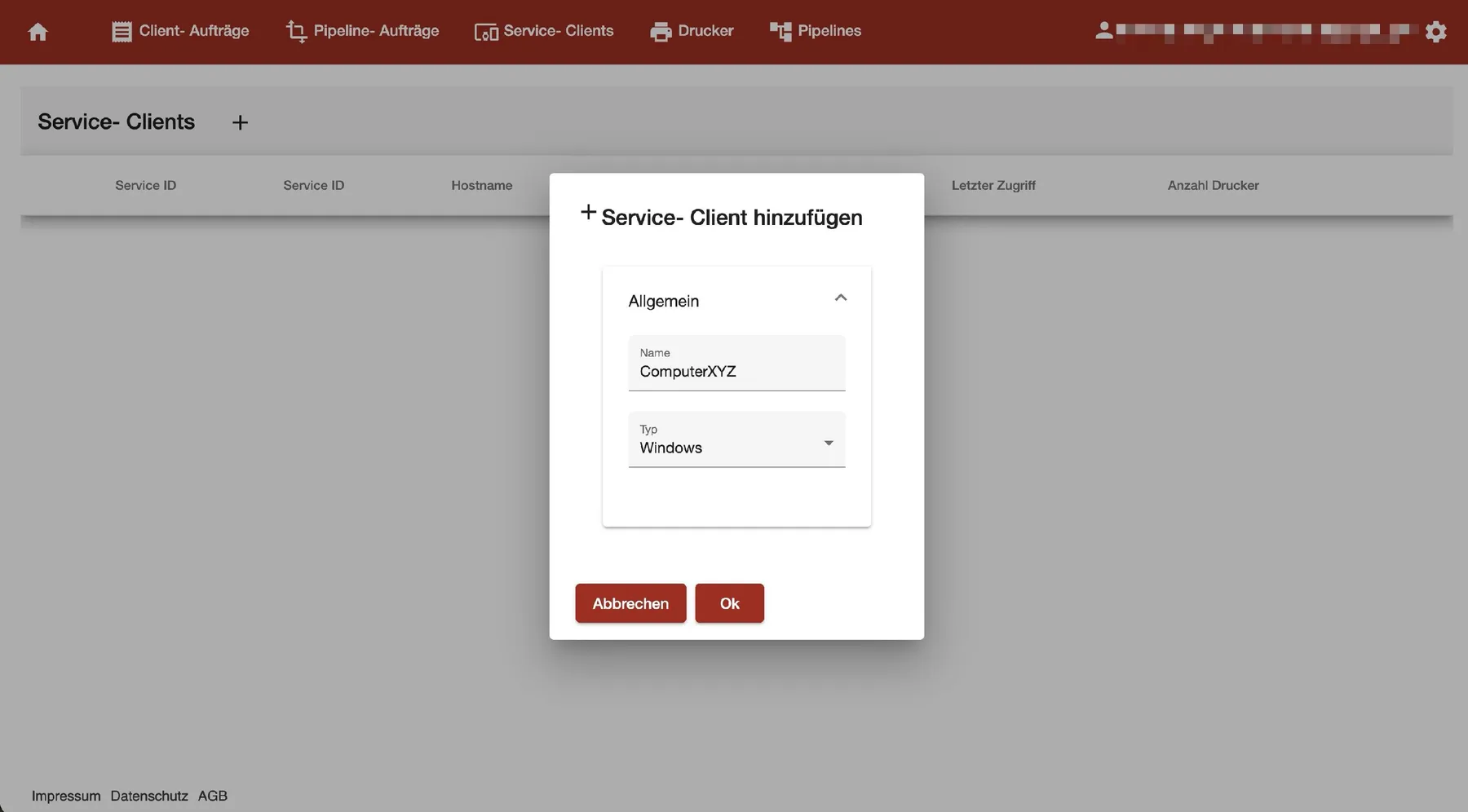
Give the Service Client a name you will recognise later, then select "Ok".Screenshot from comrce cloudprint, checked against the source on October 29, 2026 What this screenshot shows
- Also visible
- Name field with ComputerXYZ; Typ field with Windows
- Purpose
- name the new Service Client
-
Download the setup file. comrce cloudprint now creates a setup file with your access details. As soon as the notification appears, download it with the download icon in the new row.
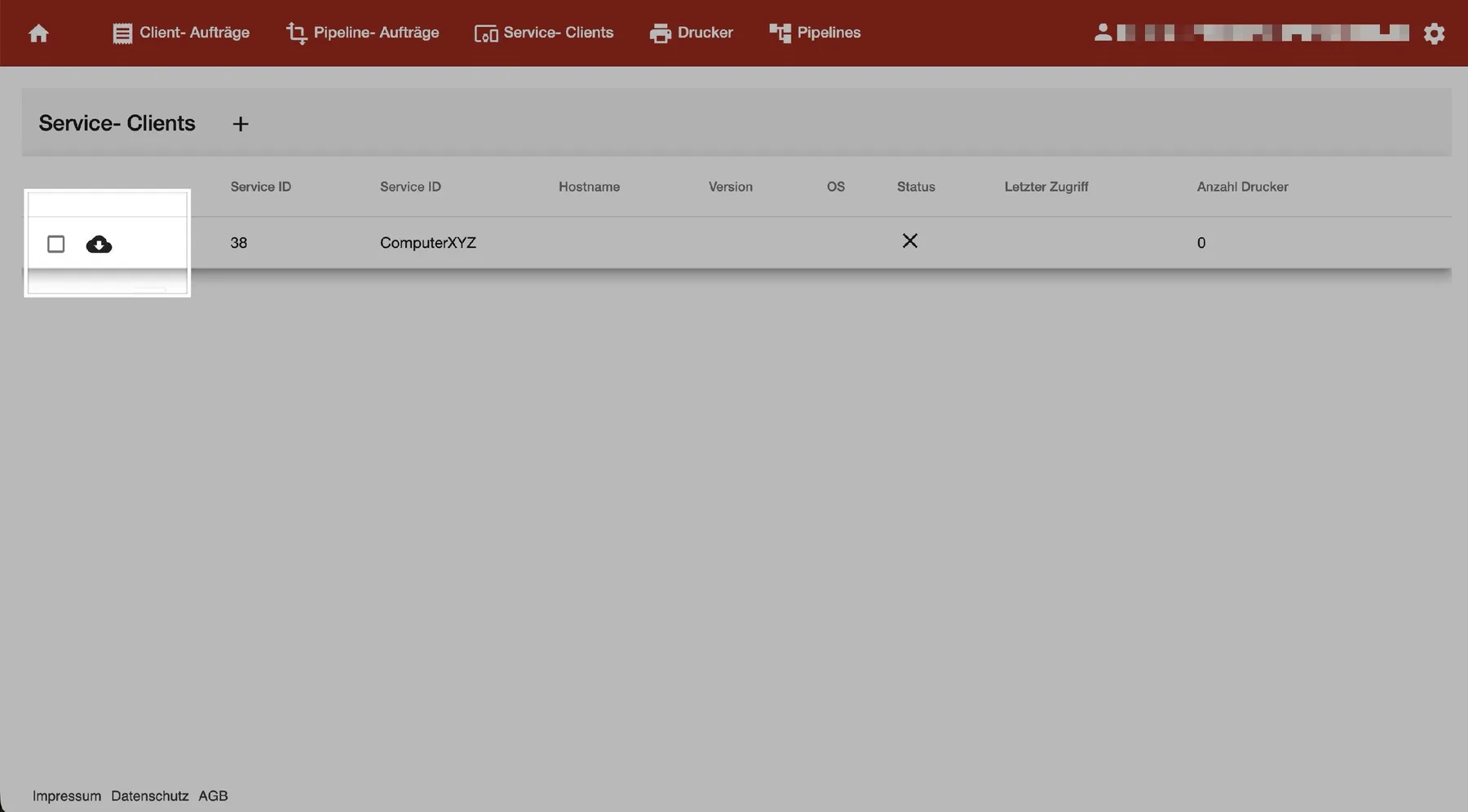
The download icon in the new row gets the setup file with your access details.Screenshot from comrce cloudprint, checked against the source on October 29, 2026 What this screenshot shows
- Also visible
- New row ComputerXYZ with a cross as status; Download icon at the left of the row
- Purpose
- download the Service Client setup file
The download icon stays for 5 days, and only until the Service Client has registered. Install the setup within 7 days. Each setup file registers exactly one computer. For a second computer, or once these limits have passed, add a new Service Client.
-
Run the installer on Windows. Start the downloaded .exe file on the computer with your printers and go through the setup wizard.
Running the setup needs administrator rights, so confirm the Windows prompt with an administrator account. At “Benutzer auswählen” (select user), choose who the Service Client runs as. Pick “Lokaler Benutzer (empfohlen)” and enter an account of this computer with its password. Some printers need that working environment.
The account needs read and write access to
C:\ProgramData\comrce_cloudprint. A local administrator account has it. Full administrator rights aren’t required. Which account the service needs explains the choice and how to assign the account later.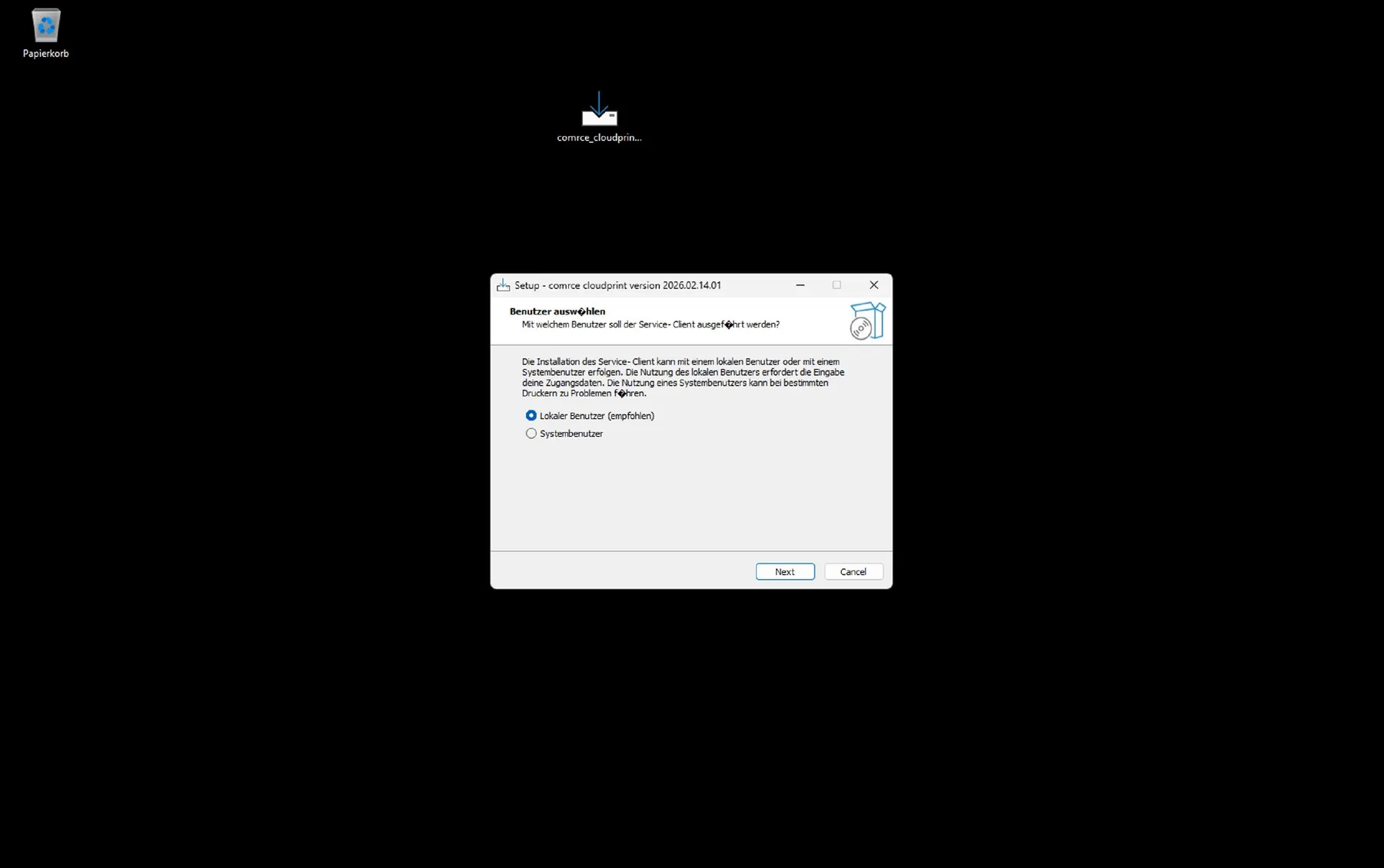
The wizard lets you run the Service Client as a local user, which it recommends, or as the system user.Screenshot from Windows, checked against the source on October 29, 2026 What this screenshot shows
- Also visible
- Options Lokaler Benutzer (empfohlen) and Systembenutzer; Buttons Next and Cancel
- Purpose
- choose the user the Service Client runs as
-
Check that it’s online. Return to Service- Clients. A check mark in the Status column shows that the Service Client is online.
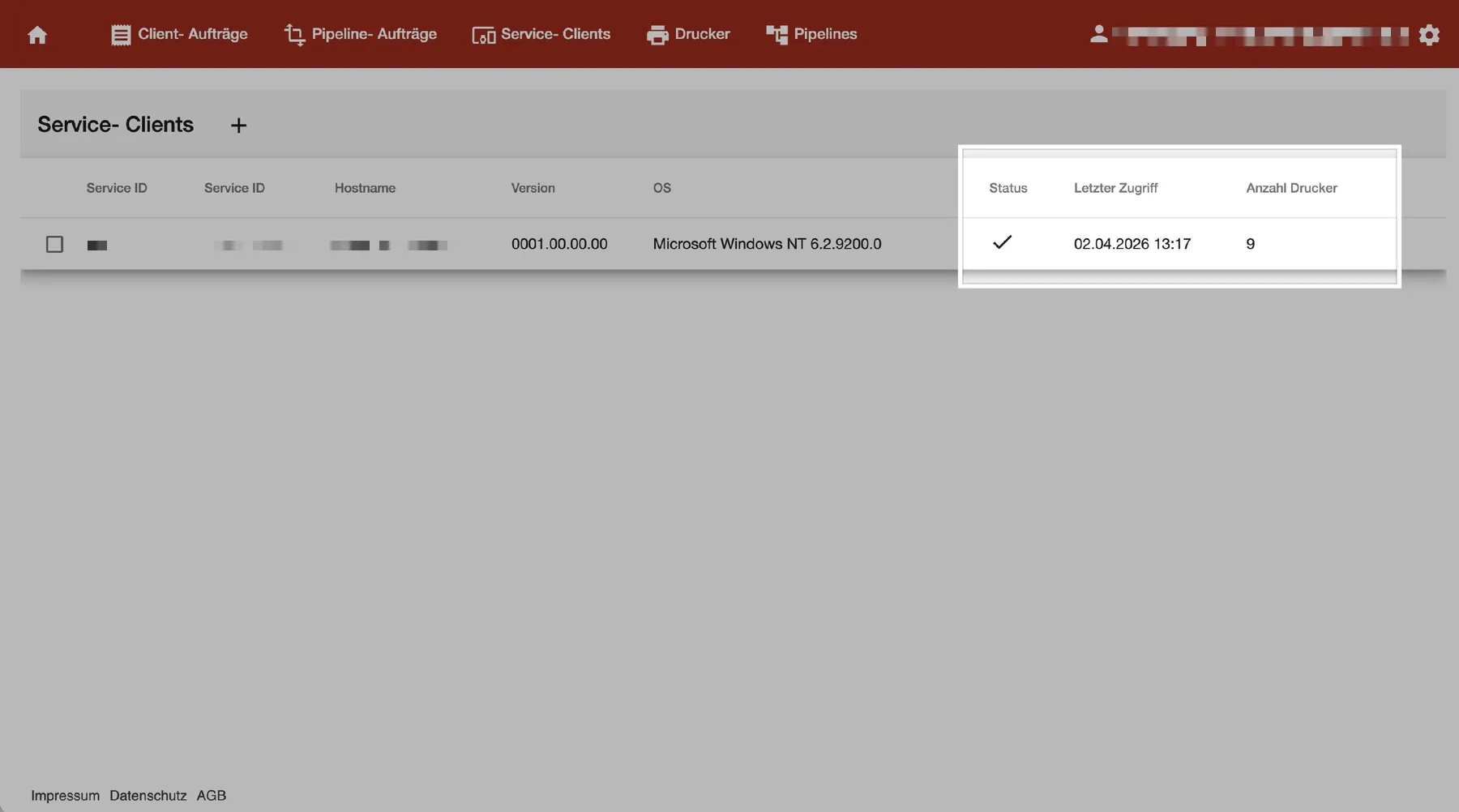
A check mark under "Status" shows that the Service Client is online.Screenshot from comrce cloudprint, checked against the source on October 29, 2026 What this screenshot shows
- Also visible
- Status check mark, last access and number of printers highlighted
- Purpose
- check that the Service Client is online
What happens next
Section titled “What happens next”The Service Client now runs on that computer as a service, in the background, all the time. It connects comrce cloudprint to the printers attached to or installed on the computer. Each printer it registers gets its own queue and pipeline.
Next, decide how documents reach your printers:
- From Billbee, for example shipping labels that print automatically: Print Billbee invoices and labels automatically. For this, comrce support releases comrce cloudprint for your Billbee account. Write to support@comrce.io with the email address of your Billbee account.
- Through queues and pipelines of your own: Processes and how they work.
- From your own programs through the API: API access.
If something goes wrong
Section titled “If something goes wrong”| Symptom | What to check | Fix |
|---|---|---|
| The sign-in page only lets you sign in, not register | The link below the sign-in form | Select Sign Up under Don't have an account?. Registration is open to everyone. |
| Install is missing on the comrce cloudprint page | You lack Managing API connections | Ask the company owner to install it, or to give you the permission |
| comrce cloudprint doesn’t open and shows This application is not installed for your organization. | Whether comrce cloudprint is installed in the company you chose at sign-in | Install it in that company, or sign in again and choose the company it’s installed in. See Error messages and problems. |
| comrce cloudprint shows Es konnte kein Account angelegt werden. | Whether the owner has opened comrce cloudprint yet | The owner opens it first. See No comrce cloudprint account was created. |
| The download icon is missing in the Service Client’s row | How old the Service Client is, and whether its setup is already installed | Reload the page. After 5 days, or once it has registered, add a new Service Client. |
| A printer has problems while the Service Client runs as the system user | Which user you chose in the setup wizard | Assign a local user account |
| The Service Client needs a restart | The “cloudprint-Client” service in Windows | Restart the Service Client |
Related
Section titled “Related”- A partner’s page
- Connect a tool to your account
- comrce cloudprint in the Marketplace
- comrce cloudprint
- Service Clients
- Run the Service Client with a local user
- Service Client troubleshooting on Windows
- No comrce cloudprint account was created
- Error messages and problems
- Print Billbee invoices and labels automatically
- Switch from DRUCKERWOLKE to comrce cloudprint