

Print Billbee invoices and labels automatically
Print invoices, shipping labels and other documents from Billbee without downloading them. You connect comrce cloudprint in Billbee once. Billbee then sends each document to a queue in comrce cloudprint, and the pipeline behind it prints the document. Printing through comrce cloudprint must already work, and comrce support releases comrce cloudprint for your Billbee account first.
Before you start
Section titled “Before you start”| You need | Where it lives |
|---|---|
| A comrce Hub account with comrce cloudprint installed and a printer you can print to | Set up comrce cloudprint and your first printer |
| The release of your Billbee account by comrce support | Write to support@comrce.io with the email address of your Billbee account. Send your Billbee service PIN only if support asks for it. You don’t need to link Billbee to comrce Hub. |
-
Open Billbee’s printer and cloud storage settings. Open Billbee, for example from its icon in the comrce Hub sidebar, as Open a tool describes. Then go to app.billbee.io/app_v2/settings/cloud/devices and select the plus. After support has confirmed the release, reload Billbee first.
-
Add comrce cloudprint. Select “Comrce Cloud Print hinzufügen”, as Billbee writes it, at the end of the list. The entry appears only once your Billbee account is released.
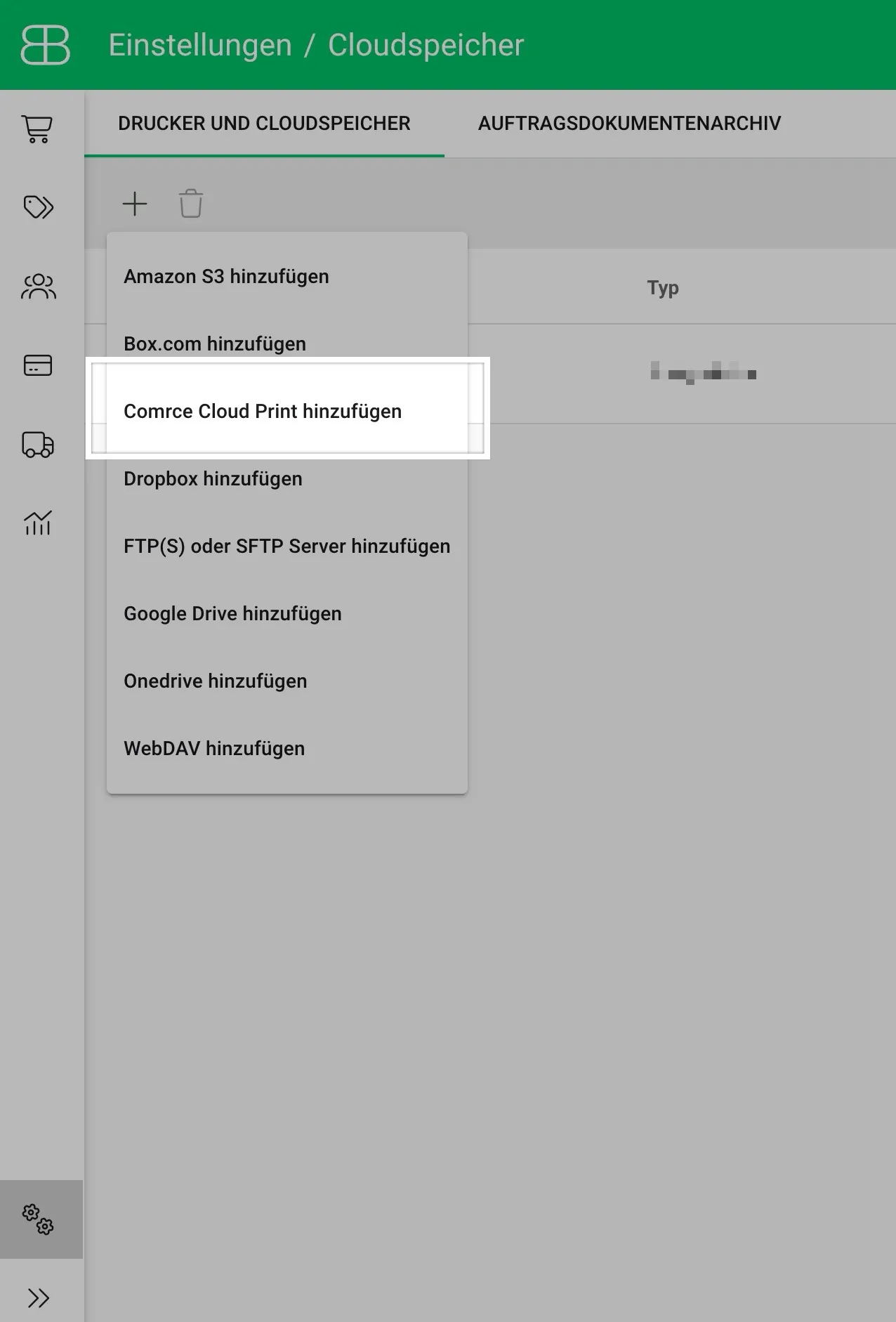
In Billbee, the plus on the "Drucker und Cloudspeicher" tab offers "Comrce Cloud Print hinzufügen".Screenshot from Billbee, checked against the source on October 29, 2026 What this screenshot shows
- Also visible
- Menu of cloud storage connections to add
- Purpose
- start the comrce cloudprint connection in Billbee
-
Grant Billbee access in comrce cloudprint. comrce cloudprint opens API- Rechte freigeben. It lists what Billbee may do with your account. Sign in if asked, then select Bestätigen.
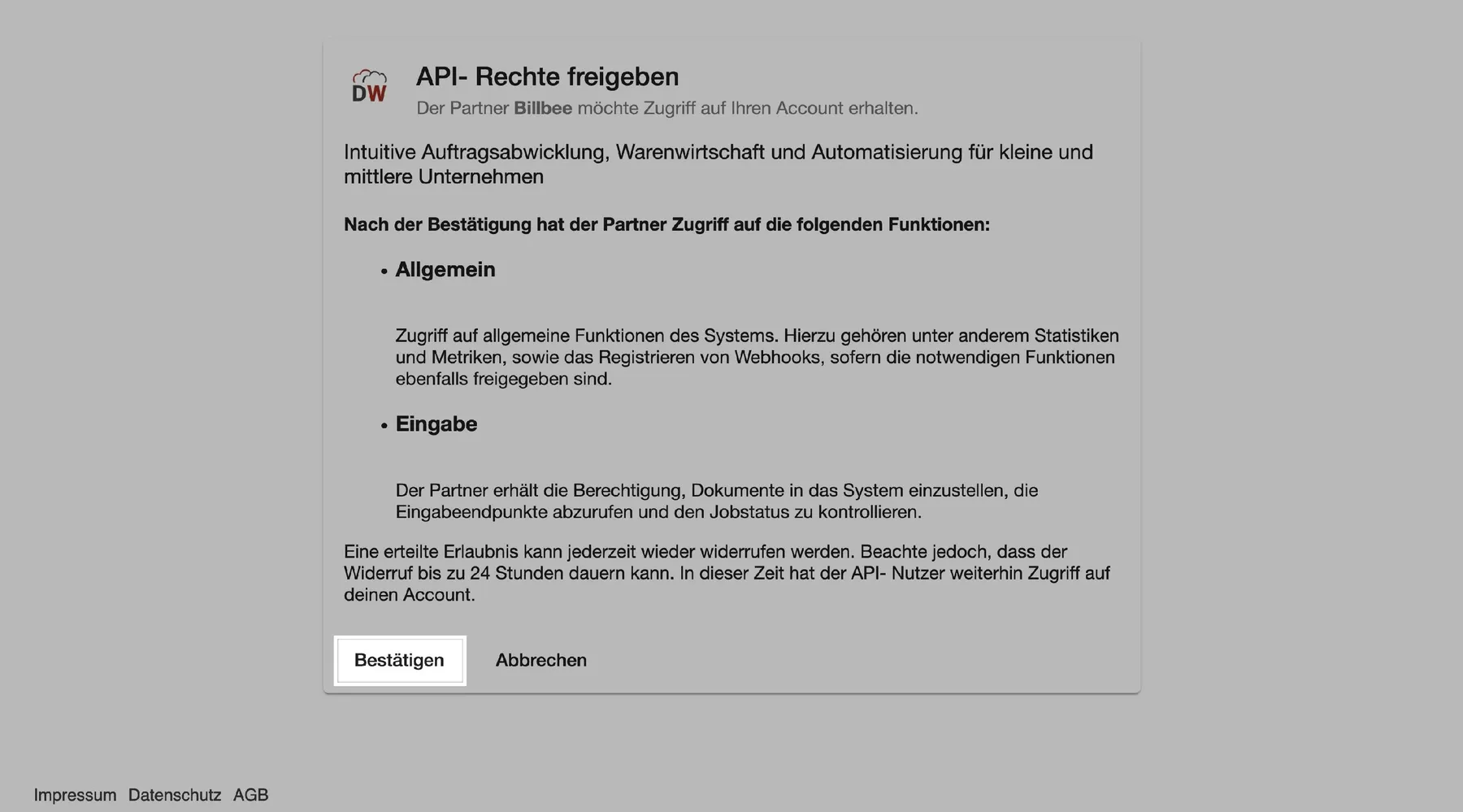
comrce cloudprint lists what Billbee may do. "Bestätigen" grants the access.Screenshot from comrce cloudprint, checked against the source on October 29, 2026 What this screenshot shows
- Also visible
- The functions Allgemein and Eingabe with their explanations; Buttons Bestätigen and Abbrechen
- Purpose
- let Billbee send documents to comrce cloudprint
-
Set up the connection. Back in Billbee, give the connection a name. Under “Warteschlange” (queue), choose the queue of the printer that should print. Its name is
Input forfollowed by the printer’s name and the Service Client’s number. Tick “Als Drucker nutzen” so Billbee uses the selection as a printer. Then save.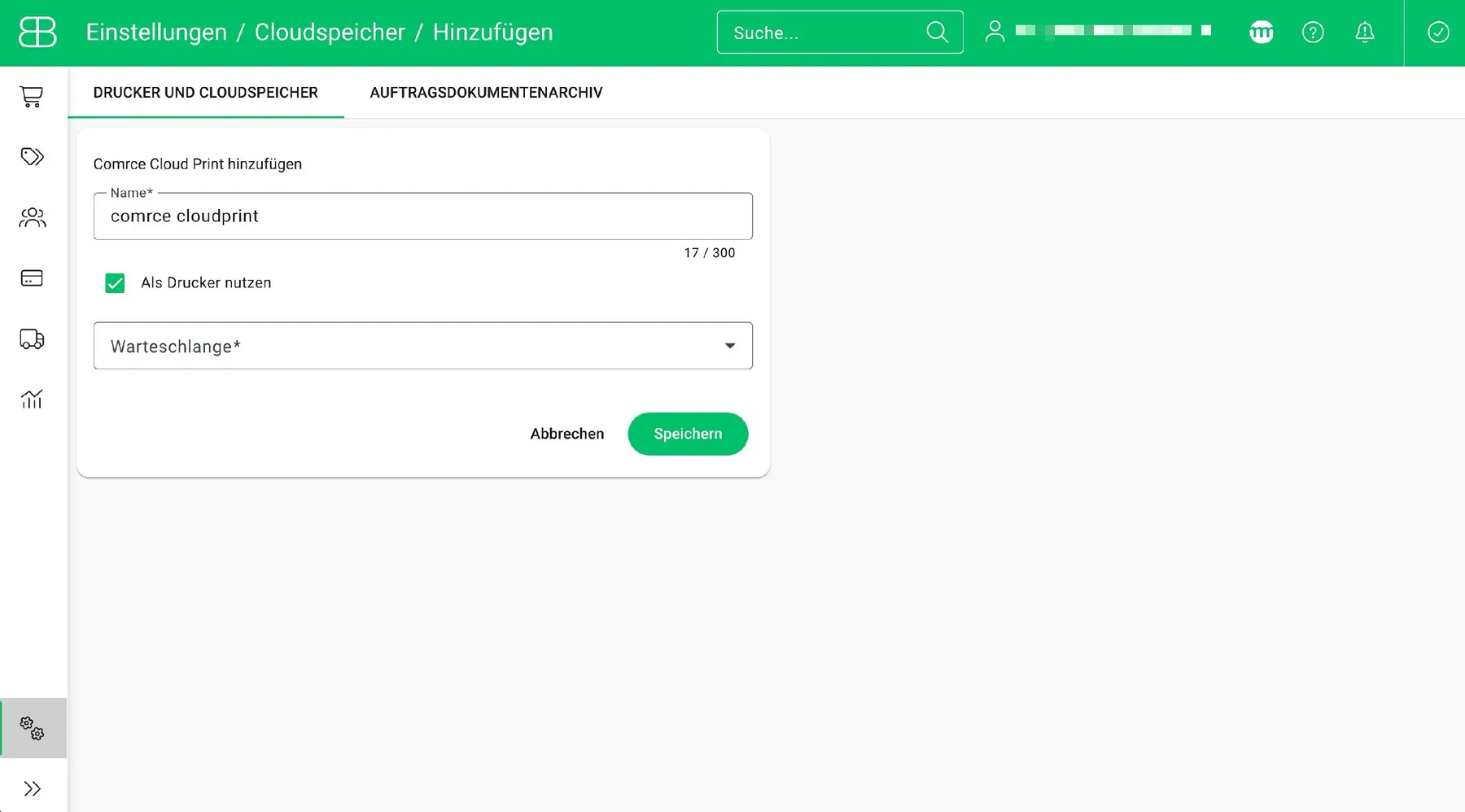
Name the connection, tick "Als Drucker nutzen", choose a "Warteschlange" and save.Screenshot from Billbee, checked against the source on October 29, 2026 What this screenshot shows
- Also visible
- Name field with comrce cloudprint; Checkbox Als Drucker nutzen, ticked; Selection Warteschlange
- Purpose
- set up the comrce cloudprint connection in Billbee
You don’t create this queue yourself. When a Service Client registers a printer, comrce cloudprint adds a queue for it. A pipeline named
Autopipeline forand the printer’s name comes with it. The list stays empty until a Service Client has registered a printer. -
Print a test document. In Billbee, tick an order and create an order document with the document icons.
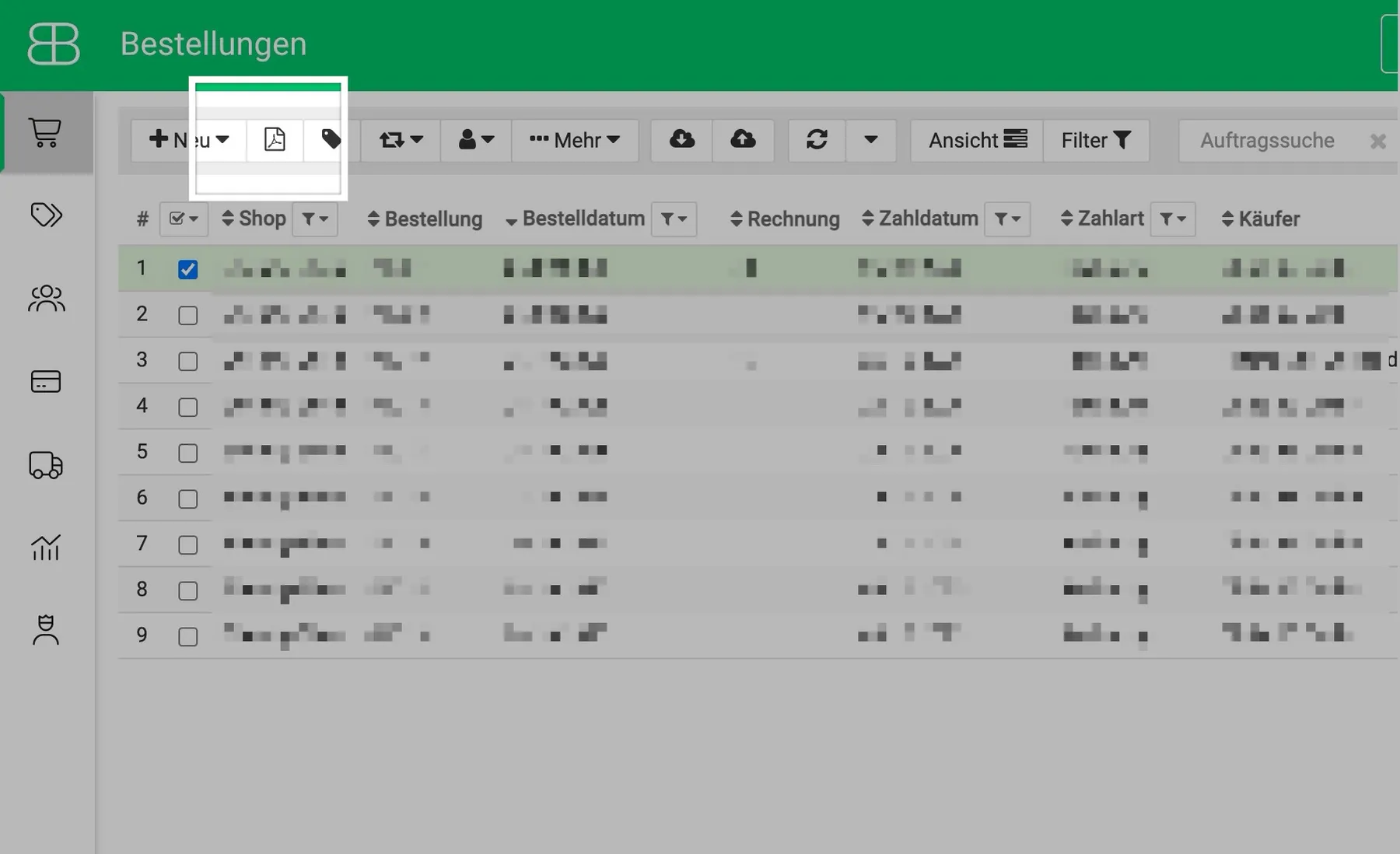
Tick an order in Billbee and use the document icons to create an order document.Screenshot from Billbee, checked against the source on October 29, 2026 What this screenshot shows
- Also visible
- Order list with one order ticked; Document icons in the toolbar
- Purpose
- create a test document in Billbee
Choose your printer as “Ausgabeformat”. Billbee shows the name you gave the connection, in this example “comrce cloudprint”. Select “Dokument(e) erstellen”. Billbee sends the document to comrce cloudprint, and it’s printed.
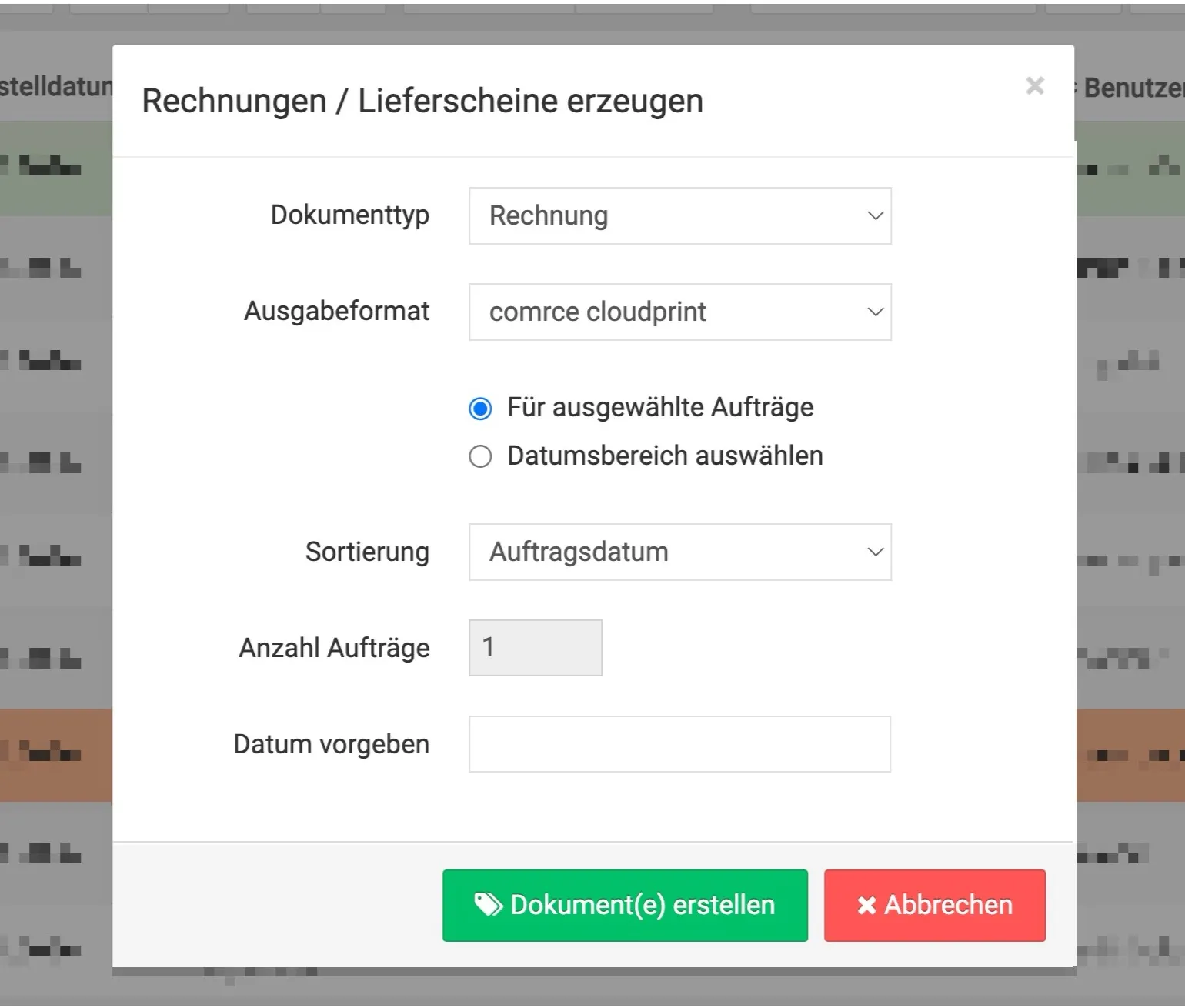
Choose your comrce cloudprint printer as "Ausgabeformat" and select "Dokument(e) erstellen".Screenshot from Billbee, checked against the source on October 29, 2026 What this screenshot shows
- Also visible
- Ausgabeformat set to comrce cloudprint; Button Dokument(e) erstellen
- Purpose
- print a test document through comrce cloudprint
What happens next
Section titled “What happens next”The comrce cloudprint printer is now available in Billbee’s automations and workflows. Instead of saving shipping labels to a cloud storage such as Google Drive, choose the connection as their output. You can use it in several places in Billbee:
- As the output for shipping labels. Billbee’s guide setting up DHL business shipping shows this for DHL.
- As the output for order documents.
- As the output in automations, for example when shipping or for order documents.
Billbee’s access appears in comrce cloudprint under OAuth API Zugriff in the gear menu. There you can switch it off or delete it, as API access describes.
Options
Section titled “Options”| Choice | When to pick it | Effect |
|---|---|---|
| One connection per printer | You print labels and invoices on different printers | Add one connection in Billbee for each printer, each with that printer’s queue. In Billbee, choose which connection prints what. |
| Several locations | You print at two or more sites | Install a Service Client on one computer per site. Each registers its own printers and queues. Then add a connection per printer in Billbee. |
If something goes wrong
Section titled “If something goes wrong”| Symptom | What to check | Fix |
|---|---|---|
| “Comrce Cloud Print hinzufügen” is missing under the plus, or Billbee reports “comrce Hub SSO beta” nicht aktiviert | Whether comrce support has confirmed the release of your Billbee account | Write to support@comrce.io with the email address of your Billbee account. After the confirmation, reload Billbee. The entry is at the end of the list. |
| Billbee still shows only “Druckerwolke hinzufügen” after the release | Which Billbee account you’re signed in to | Reply to support with the email address of the Billbee account you’re signed in to |
| The list under “Warteschlange” stays empty | Whether a Service Client has registered a printer: a tick under Status on Service- Clients, and the printer listed on Drucker | Billbee lists only queues of registered printers. Get the Service Client online, as Set up comrce cloudprint and your first printer describes. |
| API- Rechte freigeben shows an error | The bold line on the card | See Error messages and problems |