

Service Clients
The Service- Clients (Service Clients) tab lists the computers that print for comrce cloudprint. A Service Client is a small program on such a computer. It fetches your print jobs and sends them to the printers installed there. Here you add one, download its setup and see whether it’s online. Open the tab with Service- Clients in the red bar.
What you can do here
Section titled “What you can do here”- Add a Service Client and download its setup. You give it a name, and comrce cloudprint builds a Windows setup for it. Add a Service Client
- Print from a second computer or location. Every computer with printers needs its own Service Client. Add a second computer or location
- See which computers are online. The status shows a tick while the Service Client is in contact, and when it last was. Check whether a Service Client is online
- Update an old Service Client. A red version number with a download arrow means a newer setup exists. Update a Service Client
- Switch a Service Client off, on or delete it. Deleting it also removes its printers. Switch off or delete a Service Client
The screen at a glance
Section titled “The screen at a glance”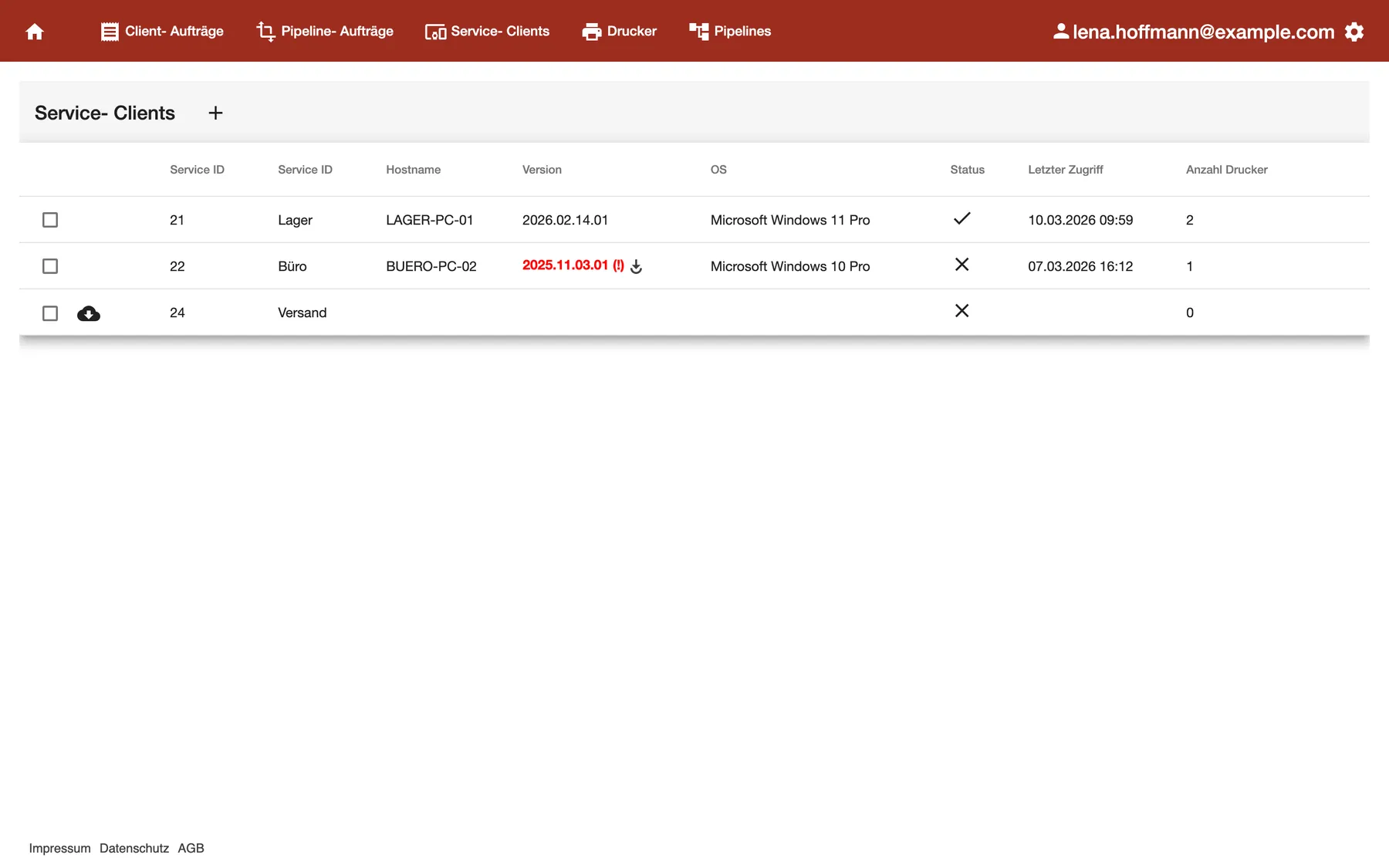
What this screenshot shows
- Screen
- Service- Clients
- Also visible
- 3 Service Clients: Lager online, Büro offline, Versand not installed yet; Büro's version in red with (!) and a download arrow
- Purpose
- see which computers print for comrce cloudprint
| Region | What it shows | What you do there |
|---|---|---|
| Heading with + | Service- Clients and the button to add one | Add a Service Client |
| Checkbox and download button | A box to select the row; a cloud button while a new setup is ready to download | Select rows, download a setup |
| Service ID | The Service Client’s number in comrce cloudprint | Relevant if you contact support |
| Service ID | The name you gave the Service Client | Recognise your computers |
| Hostname, Version and OS | The computer’s name, the installed version and Windows edition | Spot an outdated version |
| Status and Letzter Zugriff | Online or not, and the last contact | Check that printing works |
| Anzahl Drucker | How many printers the computer reported | Check that every printer arrived |
Add a Service Client
Section titled “Add a Service Client”- Select + next to the heading Service- Clients. The dialog Service- Client hinzufügen opens.
- Enter a Name, for example the place of the computer such as Versand. Leave Typ on Windows.
- Select Ok. The new row appears in the list, and comrce cloudprint starts building the setup.
- When the setup is ready, a cloud button appears at the start of the row. Select it to download the setup, then run it on the computer.
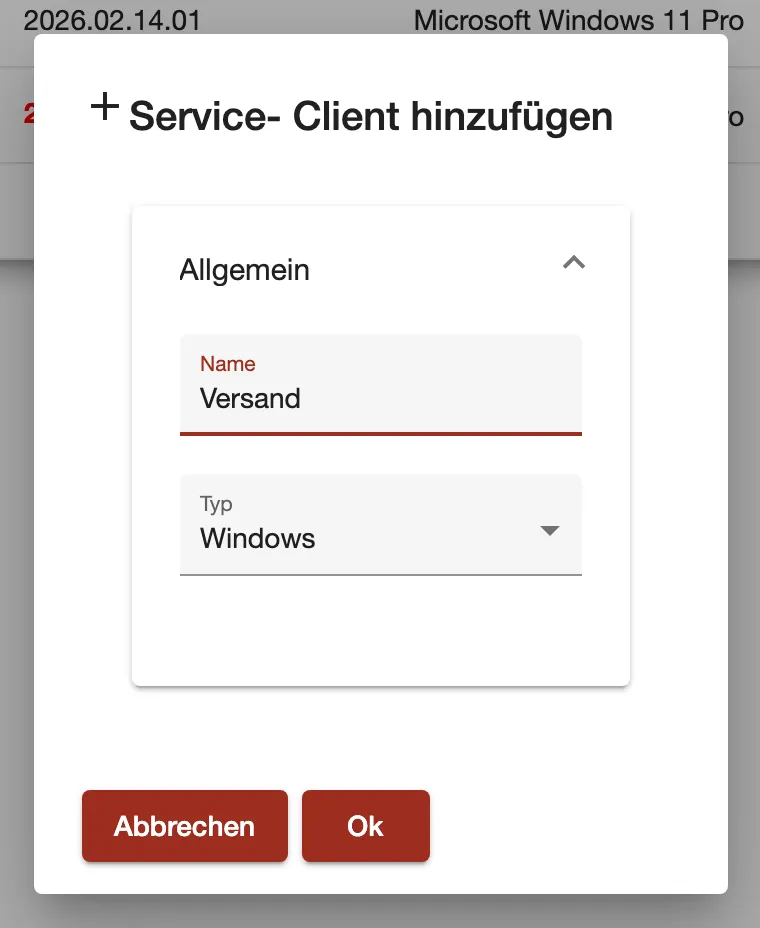
What this screenshot shows
- Screen
- Service- Clients
- Also visible
- Name: Versand; Typ: Windows
- Purpose
- add a Service Client
The setup belongs to this one row. It registers one computer, and it must be installed within 7 days. After registration the computer’s name, version and Windows edition fill in. Installing on Windows step by step is in Set up comrce cloudprint and your first printer.
Is the name already taken by another Service Client? Then comrce cloudprint adds an underscore and 20 random characters.
Add a second computer or location
Section titled “Add a second computer or location”One Service Client serves every printer installed in Windows on its computer. More printers on the same computer need no second one. Each further computer needs its own Service Client, because a setup registers one computer only. Installed on a second computer, the same setup is rejected, and nothing prints there.
- On the second computer, install the printers in Windows.
- Add a Service Client as described in Add a Service Client. Name it after the place, for example Lager Süd.
- Download its setup with the cloud button in the new row and install it on the second computer.
- Check that both rows show a tick in Status. The second computer’s printers appear on Printers, each with its own automatic pipeline and queues.
- In Billbee, connect a printer of the second computer the same way as the first. Print Billbee invoices and labels automatically shows how.
Each printer has its own queue. The queue a document goes to decides which computer prints it. You don’t pick a printer per order in comrce cloudprint.
Replacing a computer works the same way. Add a new Service Client for the new computer instead of running the old setup again. Then delete the old one with the bin. Its printers disappear from Printers. Switch pipelines and Billbee connections that used them to the new computer’s printers.
Check whether a Service Client is online
Section titled “Check whether a Service Client is online”The Status column shows a tick when the Service Client was in contact during the last 5 minutes. A cross means no contact for longer, or a new Service Client that isn’t installed yet. Letzter Zugriff shows the date and time of the last contact.
Example: on 10 March at 10:00, Lager shows a tick and 09:59. Büro shows a cross and 07.03.2026 16:12: that computer has been off since Saturday afternoon. Its printer Büro Farbdrucker gets no jobs until it’s back.
Update a Service Client
Section titled “Update a Service Client”A red version number with (!) and a download arrow means a newer Windows setup exists. Select the arrow, download the setup and run it on that computer. The marker appears only for Windows Service Clients that have been in contact at least once.
Switch off or delete a Service Client
Section titled “Switch off or delete a Service Client”Tick the checkbox of one or more rows. Buttons appear next to the heading.
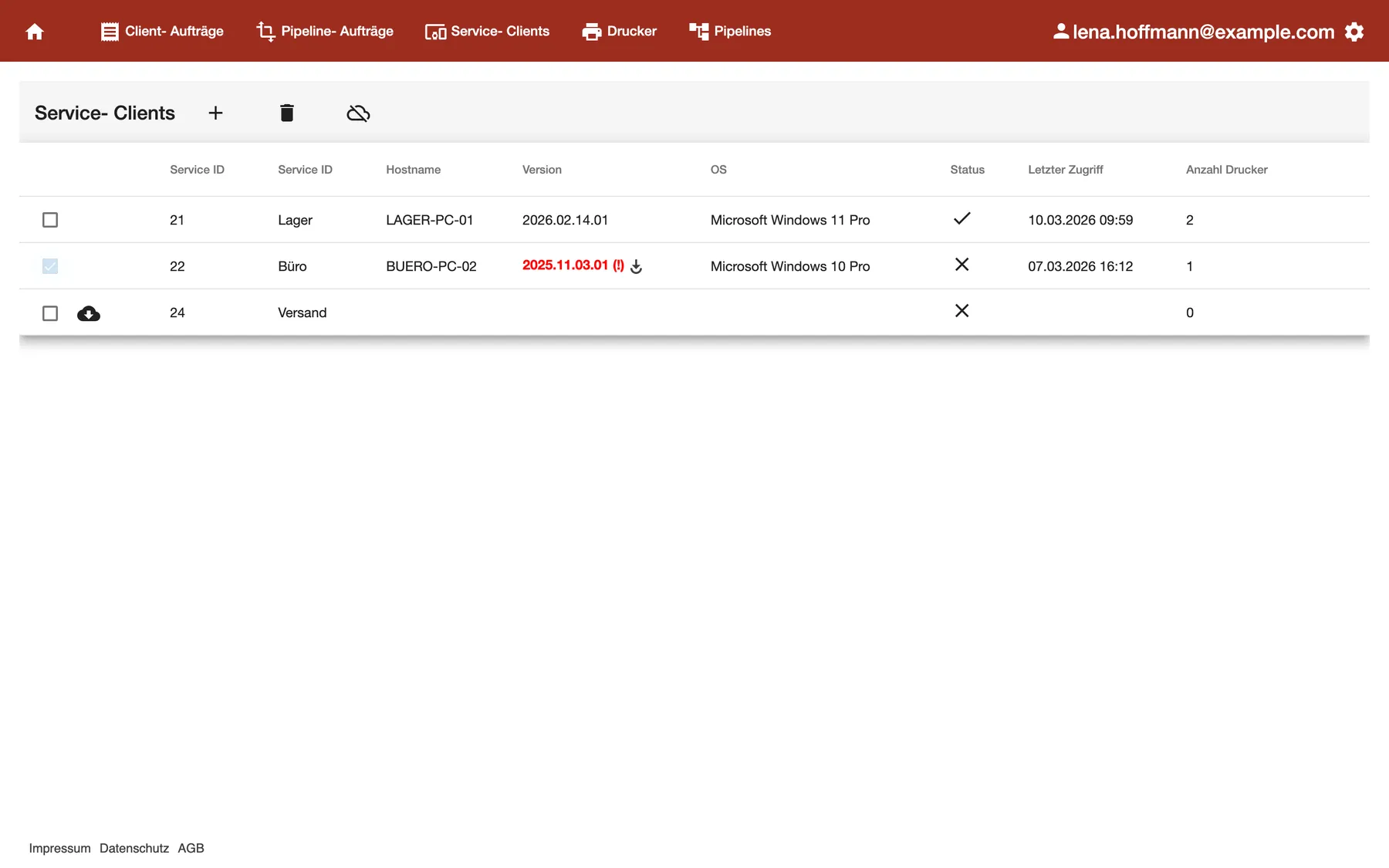
What this screenshot shows
- Screen
- Service- Clients
- Also visible
- Büro ticked; Bin and crossed-out cloud next to the heading
- Purpose
- switch off or delete a Service Client
- Switch off with the crossed-out cloud. A switched-off Service Client gets no jobs, and the status shows the crossed-out cloud. Select the row and the cloud button to switch it on again.
- Delete it for good with the bin. comrce cloudprint asks first.
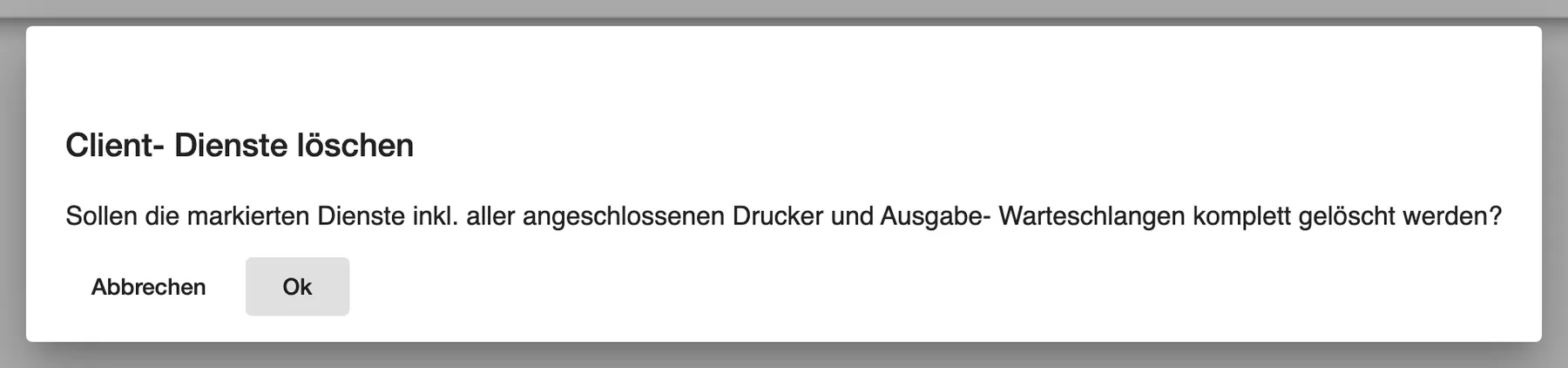
What this screenshot shows
- Screen
- Service- Clients
- Also visible
- Title Client- Dienste löschen with buttons Abbrechen and Ok
- Purpose
- confirm deleting a Service Client
Every control, explained
Section titled “Every control, explained”
Every control, explained
Section titled “Every control, explained”Status
Section titled “Status”Status column of the list.
- Tick: online, as described in Check whether a Service Client is online.
- Cross: offline, or never installed.
- Crossed-out cloud: switched off.
A cross on a computer that should print is the first thing to check when jobs stay waiting.
Setup download
Section titled “Setup download”The cloud button at the start of a row, next to the checkbox.
Appears when the setup for a new Service Client is ready. It stays for 5 days after you added the row, or until the setup registers a computer.
The setup carries the key that connects the computer to this Service Client. That’s why it’s offered only for a short time.
Version
Section titled “Version”Version column.
The version the Service Client reported. In red with (!) and a download arrow when a newer Windows setup exists.
Newer versions fix problems. Update when you see the red marker.
Dialog Service- Client hinzufügen, list Typ.
Windows builds a Windows setup. Linux shows access data once, in a message titled Clientservice Zugangsdaten. Write them down, because they aren’t shown again. MacOS asks for the Service Register Key of a Mac client from DRUCKERWOLKE. Neither of the two offers a download.
Each system is connected in a different way. comrce cloudprint currently works only with Windows.
Switch off and on
Section titled “Switch off and on”Crossed-out cloud and cloud button next to the heading, after you tick rows.
Switching off stops jobs to the Service Client and keeps it with its printers. Switching on lets it receive jobs again.
Pause a computer that is being repaired, without losing its printers.
Other controls on this page
| Control | What it does | Why |
|---|---|---|
| + | Opens Service- Client hinzufügen | Add a computer |
| Bin | Deletes the selected Service Clients after you confirm | Remove a computer for good |
| Abbrechen | Closes the dialog without adding anything | Change your mind |
| Column headers | Sort the list | Find a computer in a long list |
Frequently asked questions
Section titled “Frequently asked questions”
Frequently asked questions
Section titled “Frequently asked questions”General
Section titled “General”What is a Service Client?
Section titled “What is a Service Client?”A Service Client is a small program on a computer in your company. It fetches print jobs from comrce cloudprint and sends them to the printers installed on that computer. You add it on the Service Clients tab and install its setup on the computer.
Why are there two Service ID columns?
Section titled “Why are there two Service ID columns?”The Service Clients list has two columns with the same header. The first shows the Service Client’s number in comrce cloudprint. The second shows the name you gave it when you added it.
Does comrce cloudprint work on a Mac or Linux?
Section titled “Does comrce cloudprint work on a Mac or Linux?”comrce cloudprint currently works only with Windows. The Service Clients tab builds a setup only for the type Windows. Linux and MacOS in the add dialog offer no download.
Set up the Service Client on a Windows computer that has your printers installed. You can use comrce cloudprint itself in the browser on any computer, a Mac too. The Windows computer must be on for jobs to print.
How many Service Clients can I add?
Section titled “How many Service Clients can I add?”As many as you need. There’s no limit, neither on the Service Clients tab nor when a Service Client connects.
How long can I download the setup?
Section titled “How long can I download the setup?”On the Service Clients tab, a new Service Client’s download button stays for 5 days. It disappears for good once the setup has registered a computer. Install the setup within 7 days. For a new computer, or when the button is gone, add a new Service Client. Its setup is ready a moment after you add it.
Can I install one setup on two computers?
Section titled “Can I install one setup on two computers?”No, a setup registers one computer, once. comrce cloudprint rejects it on a second computer, and nothing prints there. For a second computer, add another Service Client on the Service Clients tab and download its own setup. One Service Client serves all printers installed on its computer. Each printer gets its own queues automatically.
Where do I download the program for my printer?
Section titled “Where do I download the program for my printer?”In comrce cloudprint, on the Service Clients tab. Select +, enter a name, leave Typ on Windows and select Ok. A cloud button appears at the start of the new row. It downloads the Windows setup for this one computer. Install your printers in Windows first, then run the setup on that computer.
We replaced the computer. How do we move comrce cloudprint to the new one?
Section titled “We replaced the computer. How do we move comrce cloudprint to the new one?”Add a new Service Client on the Service Clients tab for the new computer. Don’t run the old setup again, because it’s bound to the old computer. Install the printers in Windows on the new computer, then its new setup. Delete the old Service Client with the bin. Select the new computer’s printers in your pipelines and in Billbee.
Why did my Service Client get a long name with an underscore?
Section titled “Why did my Service Client get a long name with an underscore?”Another Service Client already had that name. So comrce cloudprint added an underscore and 20 random characters. Choose a distinct name, such as the room or the computer, when you add one.
Day to day
Section titled “Day to day”When does a Service Client count as online?
Section titled “When does a Service Client count as online?”The Service Clients tab shows a tick when the Service Client was in contact during the last 5 minutes. After 5 minutes without contact the tick turns into a cross. Letzter Zugriff shows the time of the last contact.
What’s the difference between switching off and deleting?
Section titled “What’s the difference between switching off and deleting?”Switching off on the Service Clients tab pauses the computer: no jobs go to it, but it keeps its printers. Deleting removes it, and its printers disappear from the Drucker tab. You can switch a Service Client back on, but you can’t undo a deletion.
How do I update a Service Client?
Section titled “How do I update a Service Client?”On the Service Clients tab, a red version with (!) and a download arrow means a newer Windows setup exists. Select the arrow, download the setup and run it on that computer.
Troubleshooting
Section titled “Troubleshooting”
Troubleshooting
Section titled “Troubleshooting”| Symptom | What to check |
|---|---|
| No download button appears after adding a Service Client | Building the setup takes a moment. Reload the page. If the button still doesn’t appear, add the Service Client again. |
| An empty message bar appears after adding a Service Client | comrce cloudprint couldn’t build the setup. The message has no text. Delete the row and add the Service Client again. |
| The status stays a cross after installing | Is the computer on and connected to the internet? Was the setup installed within 7 days? Was comrce cloudprint installed on this computer before? A new setup keeps the old configuration, so delete it first. Check the service on Windows: Service Client troubleshooting on Windows. |
| Anzahl Drucker shows 0 | Install the printers in Windows on that computer. The Service Client reports them to comrce cloudprint. |
| The version is red | Download the newer setup with the arrow and install it on the computer. |